Lesson 1 / Getting oriented
Understand the Krita interface
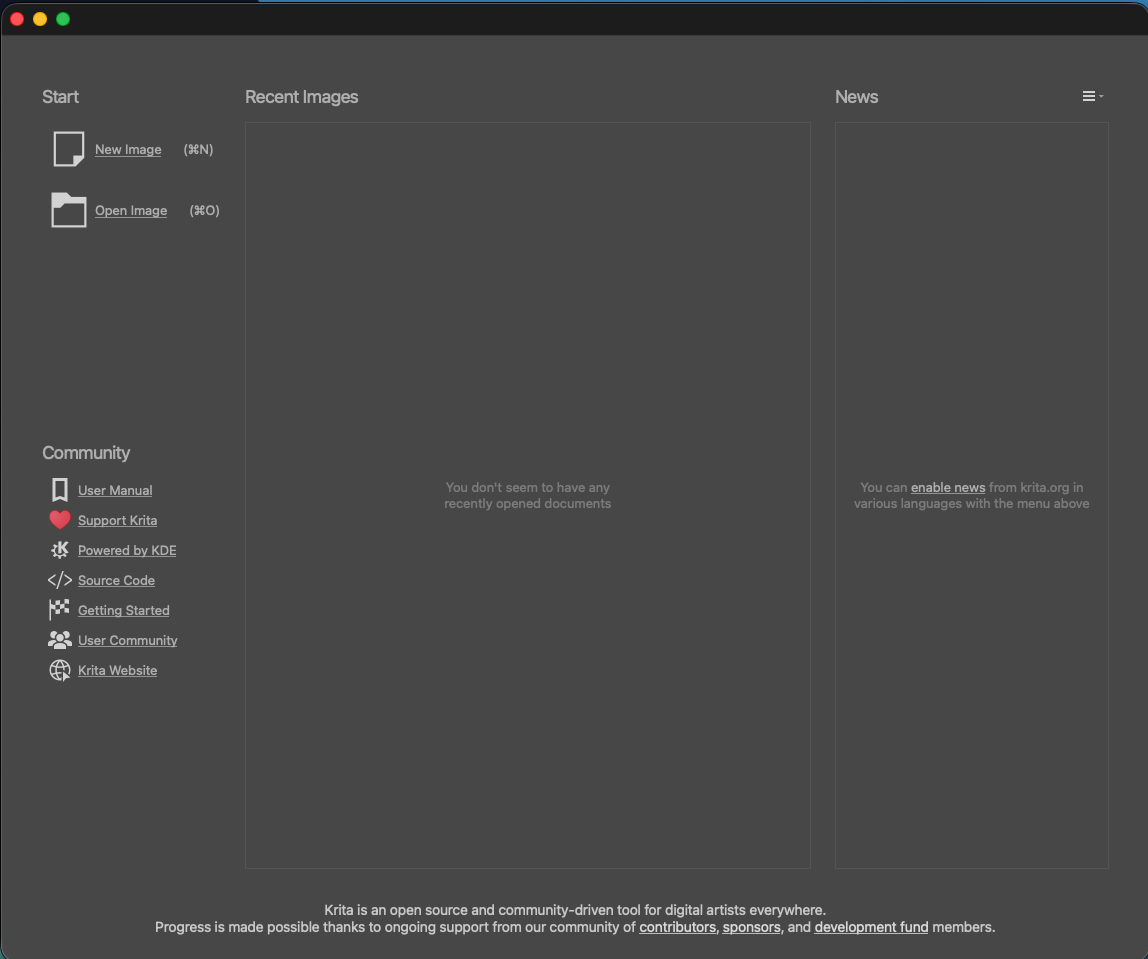
Step 1: Open Krita. When Krita opens, you’ll see the welcome screen below. It’s normal for Recent Images to be empty the first time.
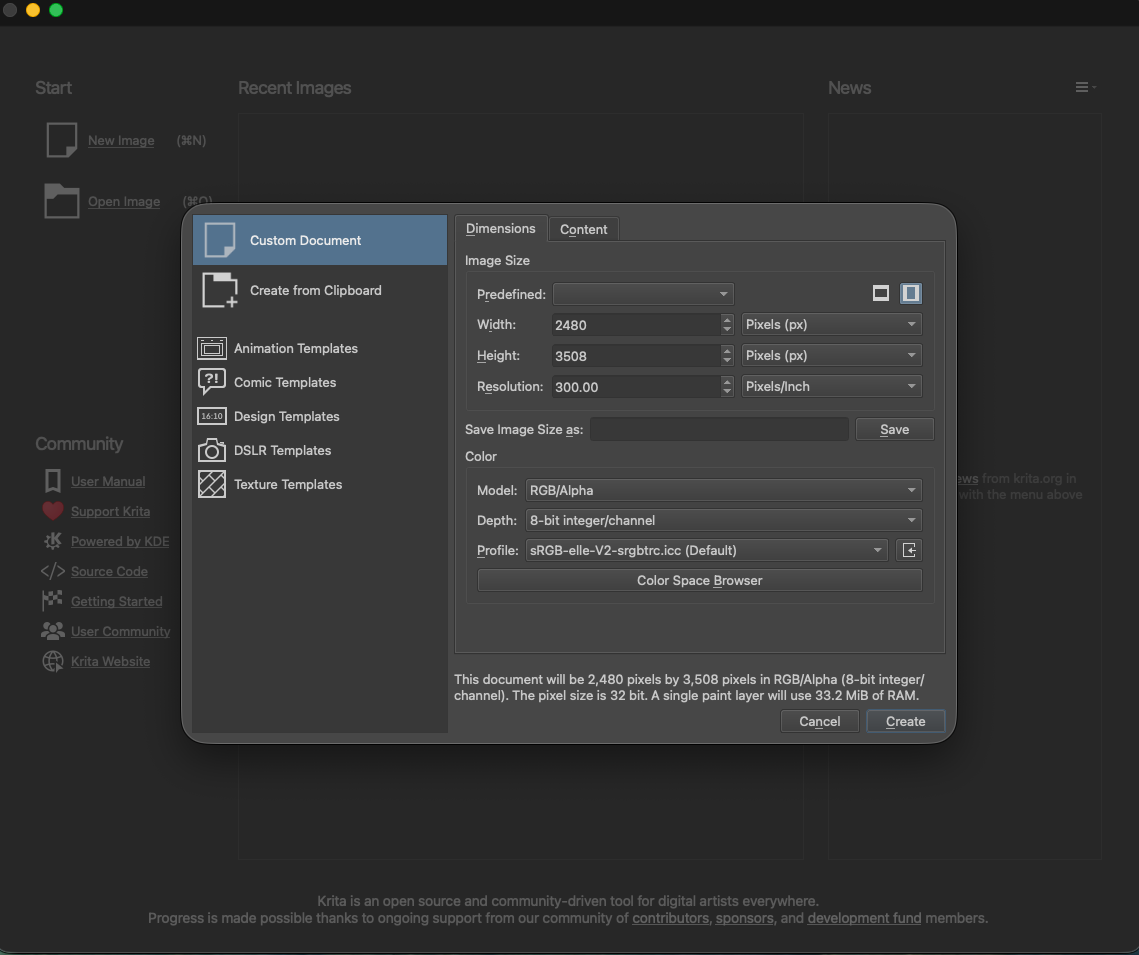
Step 2: Create a blank document. Clicking New Image opens this New Document window. The default settings are fine for our first practice.
Step 3: Look around the workspace. Your new document opens in the center. These are the main areas:
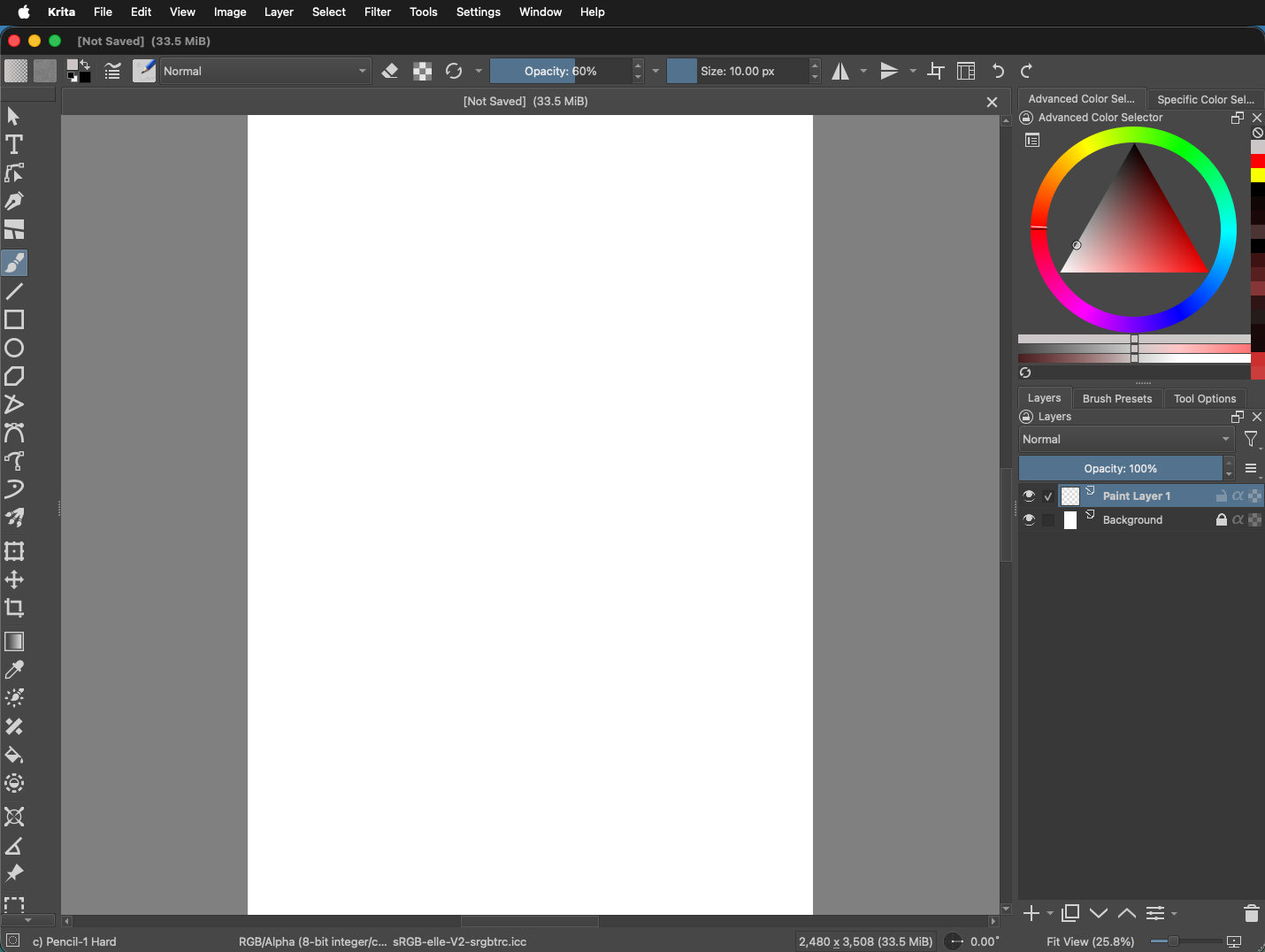
- Canvas: the page in the middle where you’ll draw.
- Toolbox: tools along the left edge, including the brush and eraser.
- Top toolbar: menus and controls for actions such as saving and undoing.
- Dockers: Krita’s name for the panels, usually along the right edge, with brushes, colors, and layers.
The Dockers can look a little different depending on your Krita version or workspace. That’s okay; we’ll learn them one at a time.
On the right / Layers docker
Understand the Layers docker
A layer holds part of your picture. Imagine drawing a sketch on one clear sheet and color on another. Because they’re separate, you can change the color without drawing over the sketch.
When you create a document like this one, Krita starts with two layers: Paint Layer 1, where you can draw, and Background, the white base underneath. The small eye icons show or hide a layer.
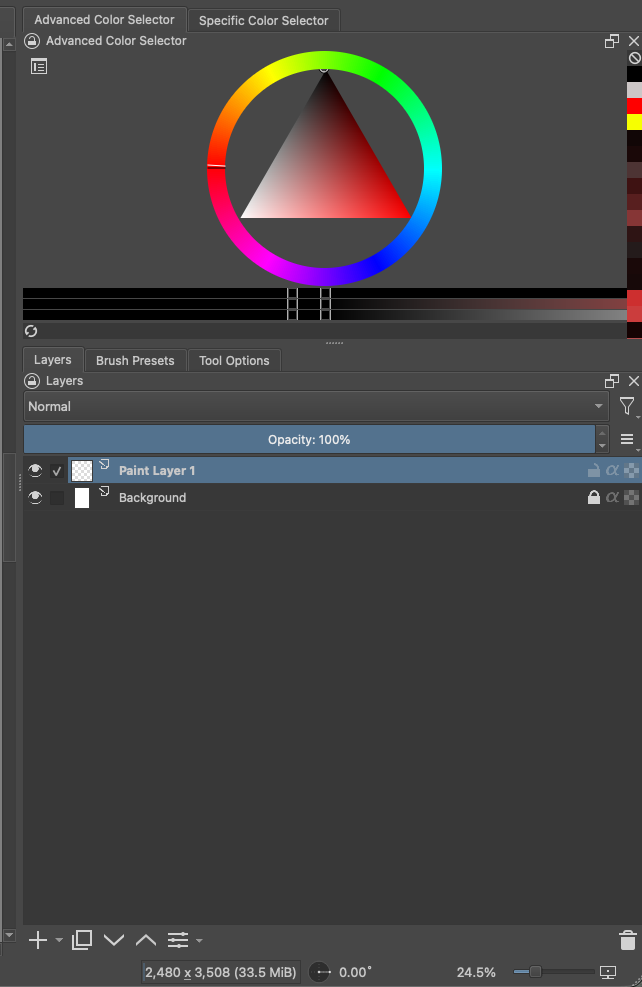
Start with the eye icons. An open eye means that layer is visible; click it to hide the layer. Click the closed eye again to show it.
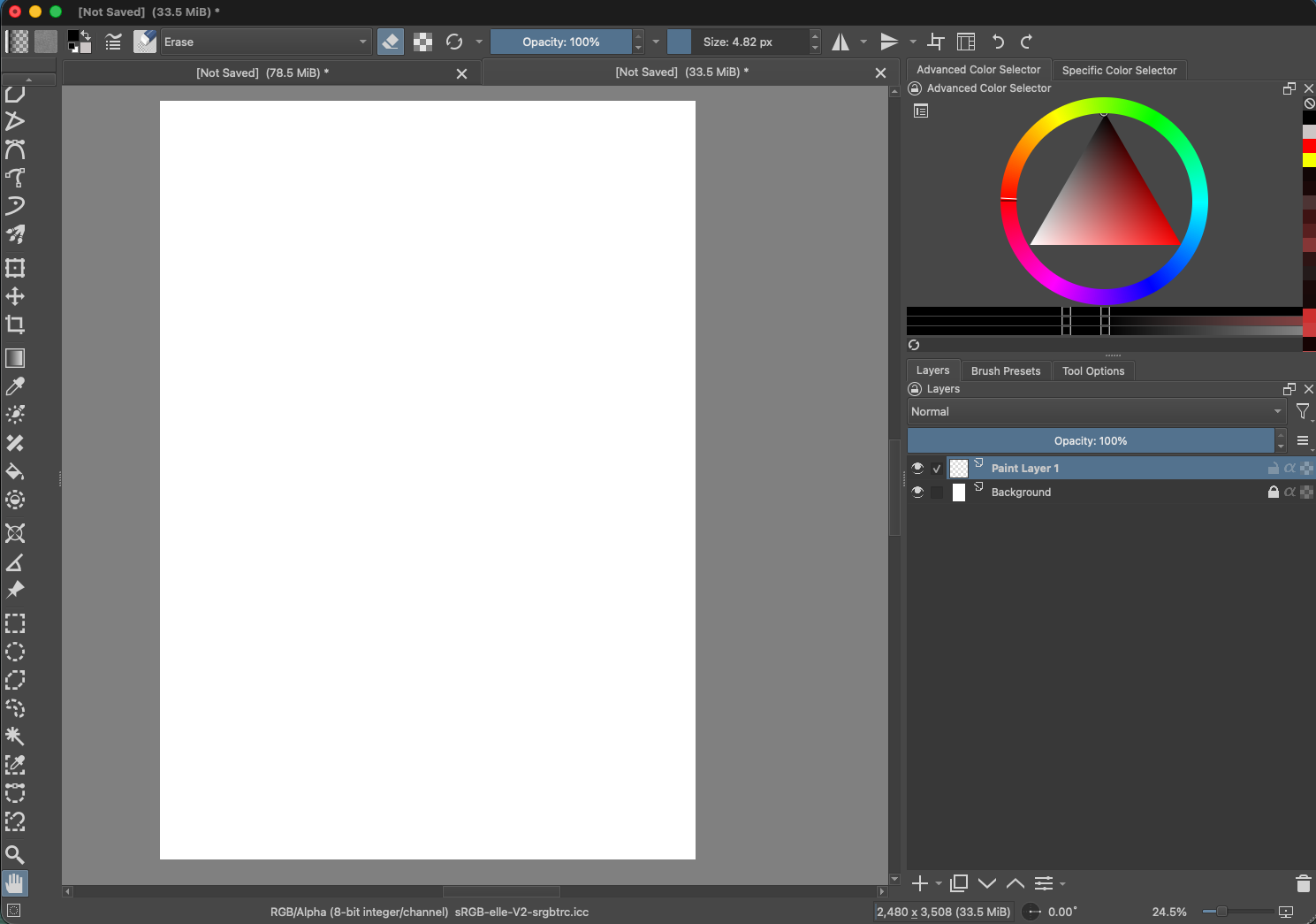
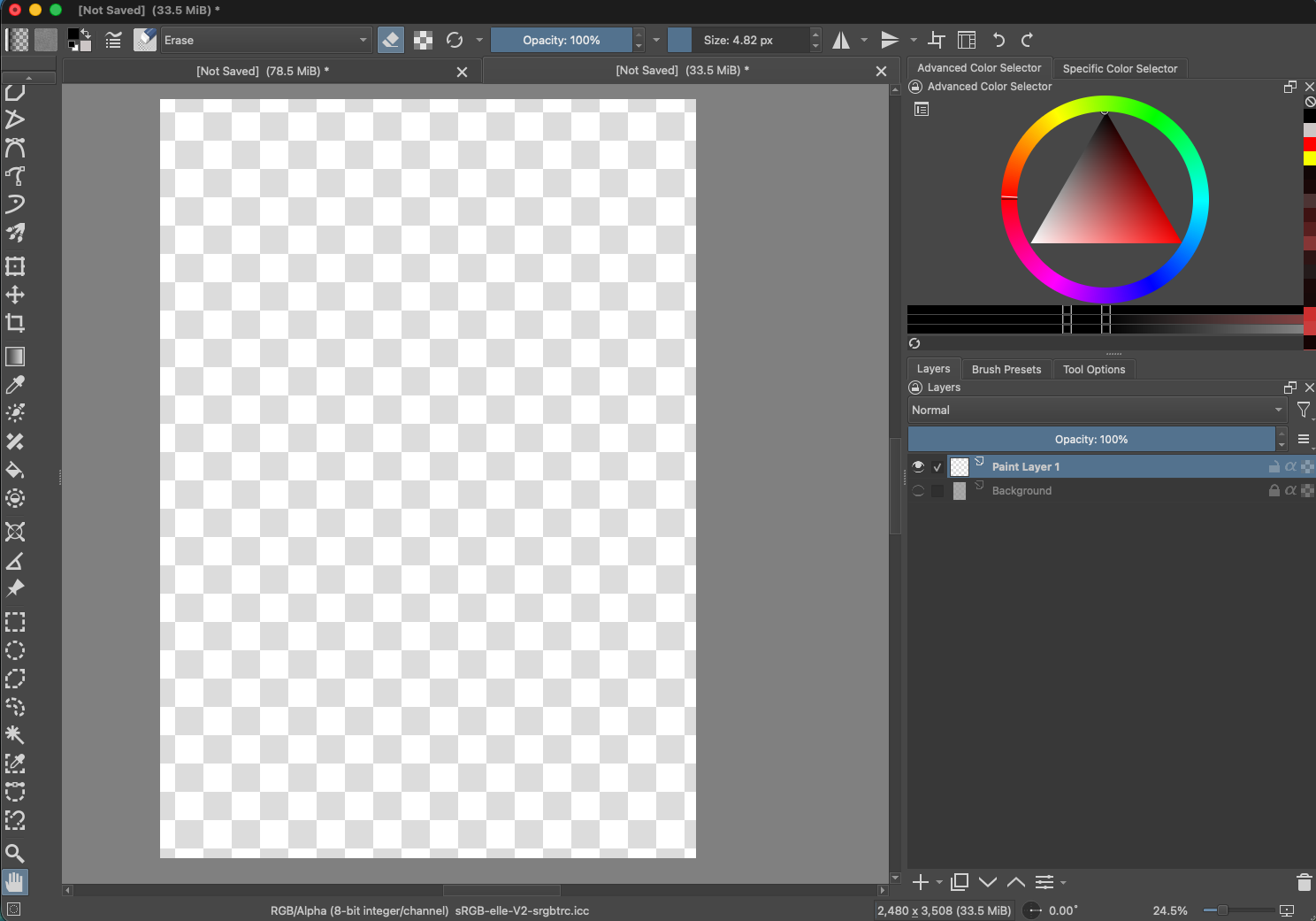
The Paint Layer 1 eye can be switched on or off the same way. It is empty in this example, so hiding it does not visibly change the canvas.
Add a layer
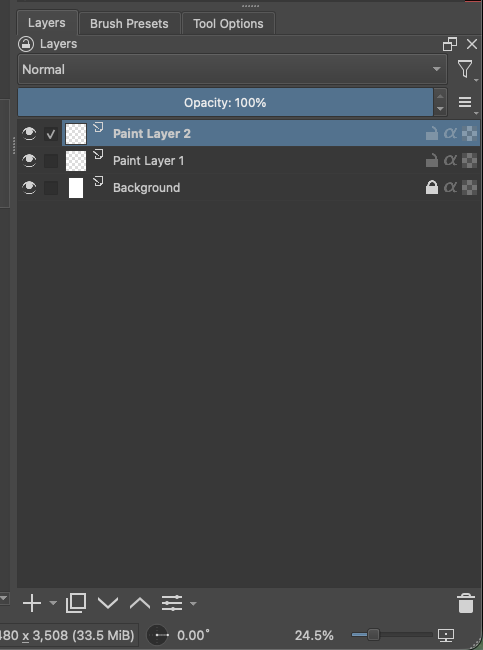
Click the + button once. Krita adds a new paint layer above the selected layer, as shown here:
Duplicate a layer
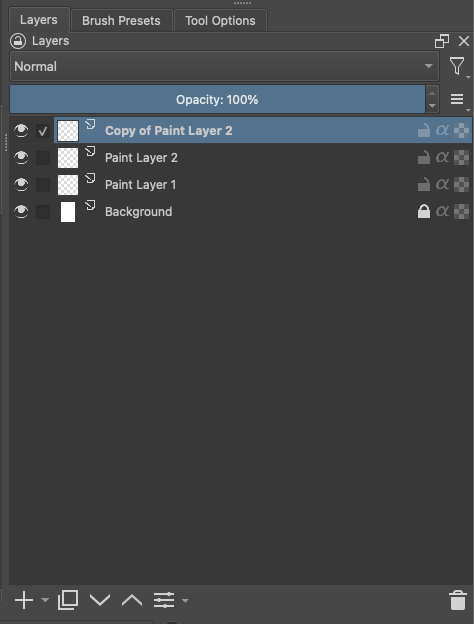
To copy a layer, select it and click the Duplicate button (the icon with two overlapping squares) at the bottom of the Layers docker. Krita makes a copy above the selected layer.
Move a layer
You can change a layer’s position in the stack. Select a layer, then click the down arrow to move it lower or the up arrow to move it higher.
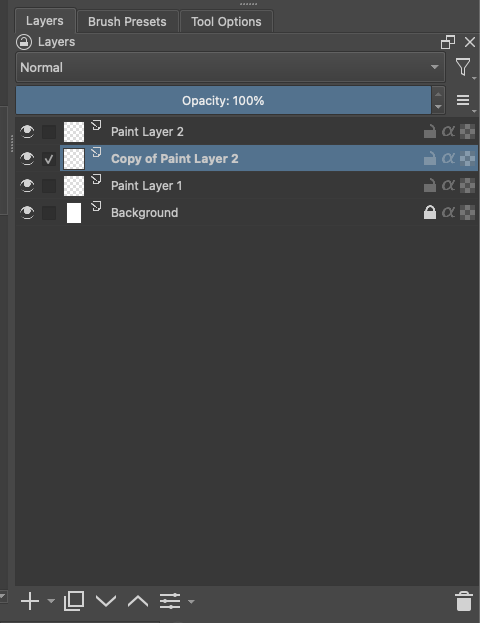
Open layer properties
Click the Properties button at the bottom of the Layers docker to open the Layer Properties window for the selected layer.
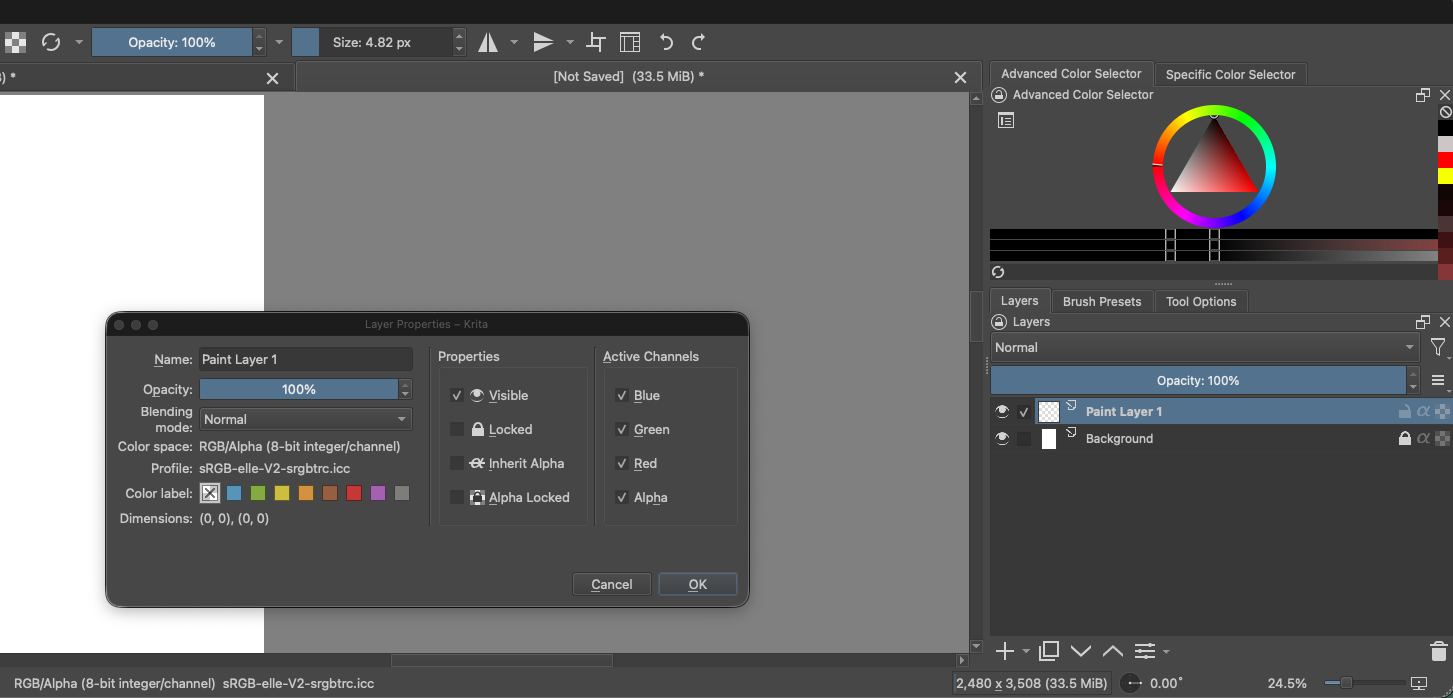
Delete a layer
To delete a layer, select it and click the trash button at the bottom-right of the Layers docker. In this example, Paint Layer 1 is selected.
Try this: Click the eye beside Background, then click it again. Watch the canvas switch between white and checkerboard. Then try adding a layer with the highlighted +.
That’s enough for Lesson 1. In Lesson 2, we’ll choose a brush and make a few simple marks.
Want to explore further? Read Krita’s official Getting Started guide and Basic Concepts.