First step
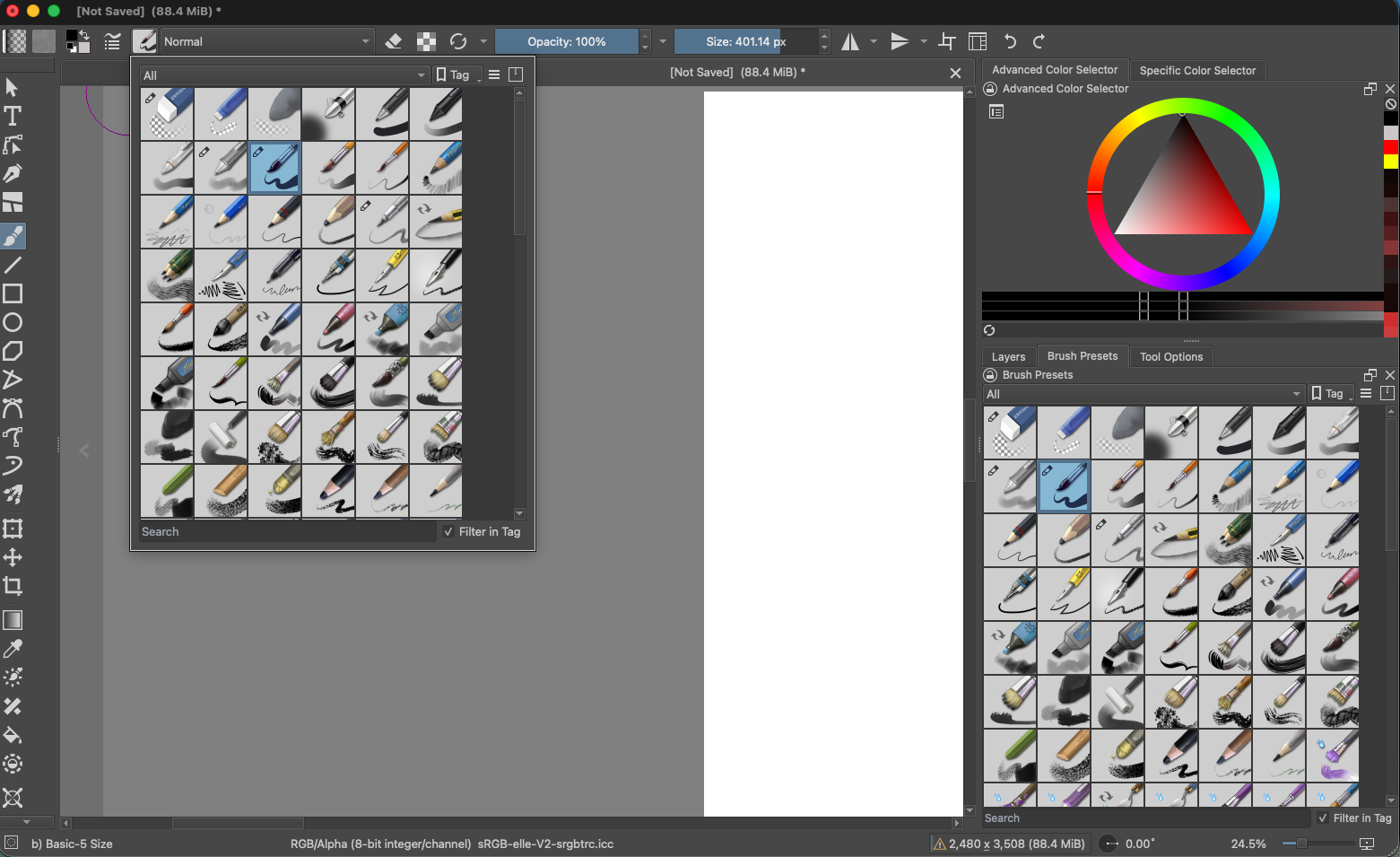
Select a brush preset
- Open your document and select the Brush Tool from the left toolbox. You can also press B.
- Open the brush choices either by clicking the brush preset control in the top toolbar or by clicking the Brush Presets tab in the right-side Dockers.
- Click a brush thumbnail in either list. Choose a simple basic brush for this first try. The selected preset becomes your active brush.
- Move to the canvas and draw a short test line. Try another preset to compare how the mark changes.
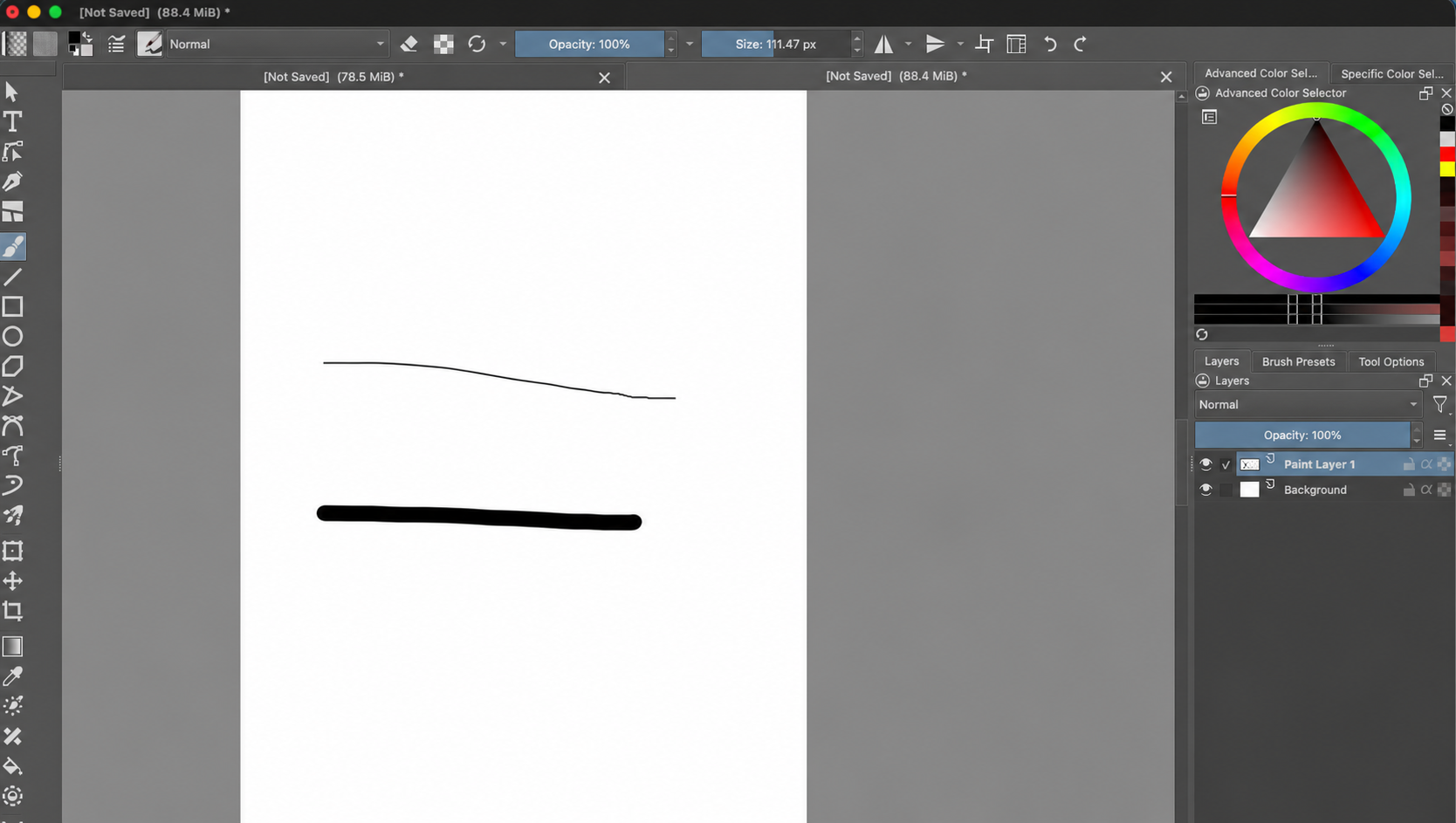
Adjust the brush size
Use the Size field in the top toolbar to make the brush smaller or larger. A smaller size makes a thin line; a larger size makes a thicker line. You can click the number and type a size, or adjust it with the control. These sample strokes are on Paint Layer 1, the selected layer in the Layers docker.
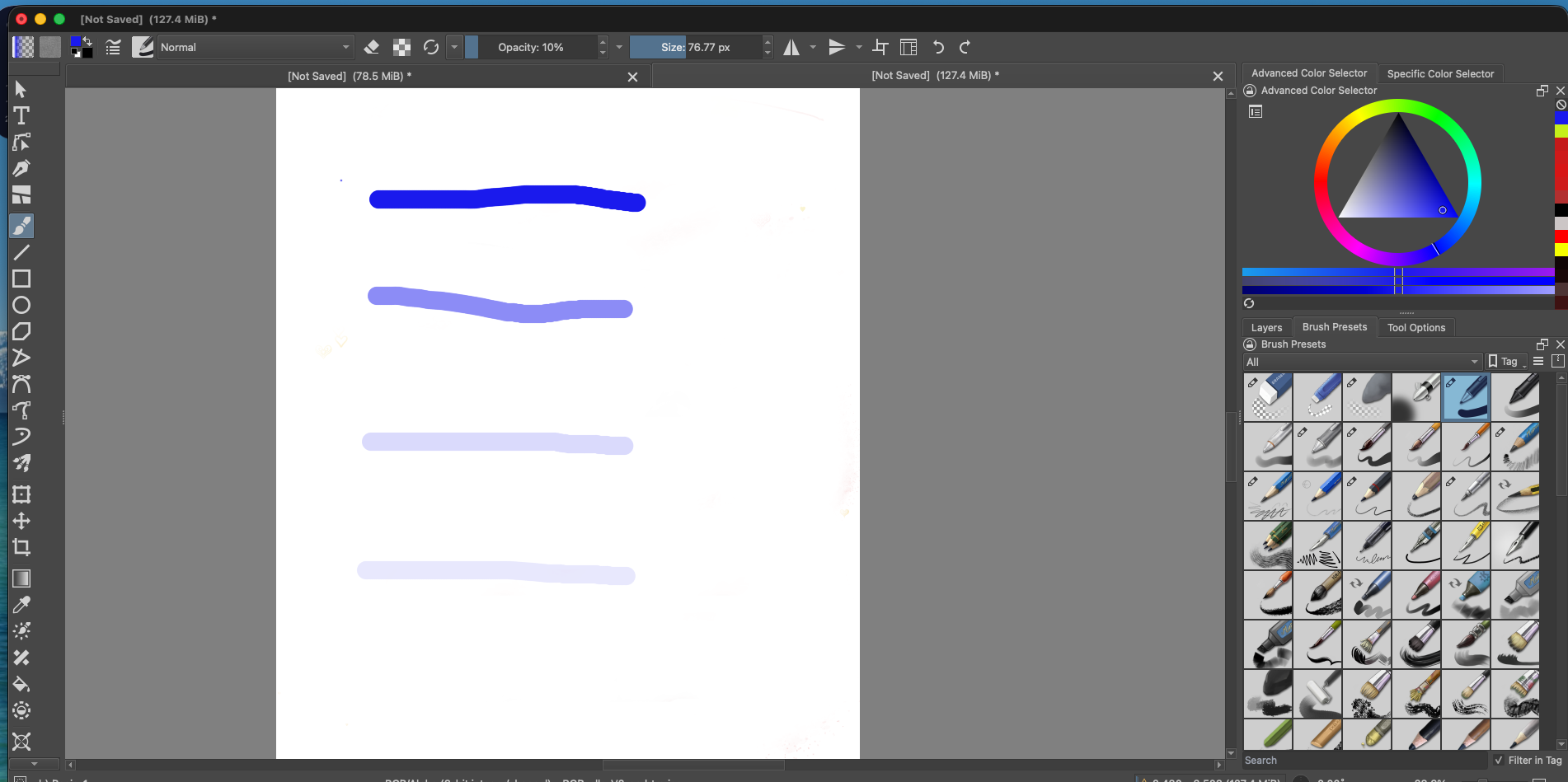
Adjust brush opacity
Opacity controls how strongly the brush color shows. At 100%, a stroke is fully opaque. Lower values make it lighter and more transparent. In this example, the strokes go from 100% to 50%, 25%, and 10%.
Hide the Background to see transparency
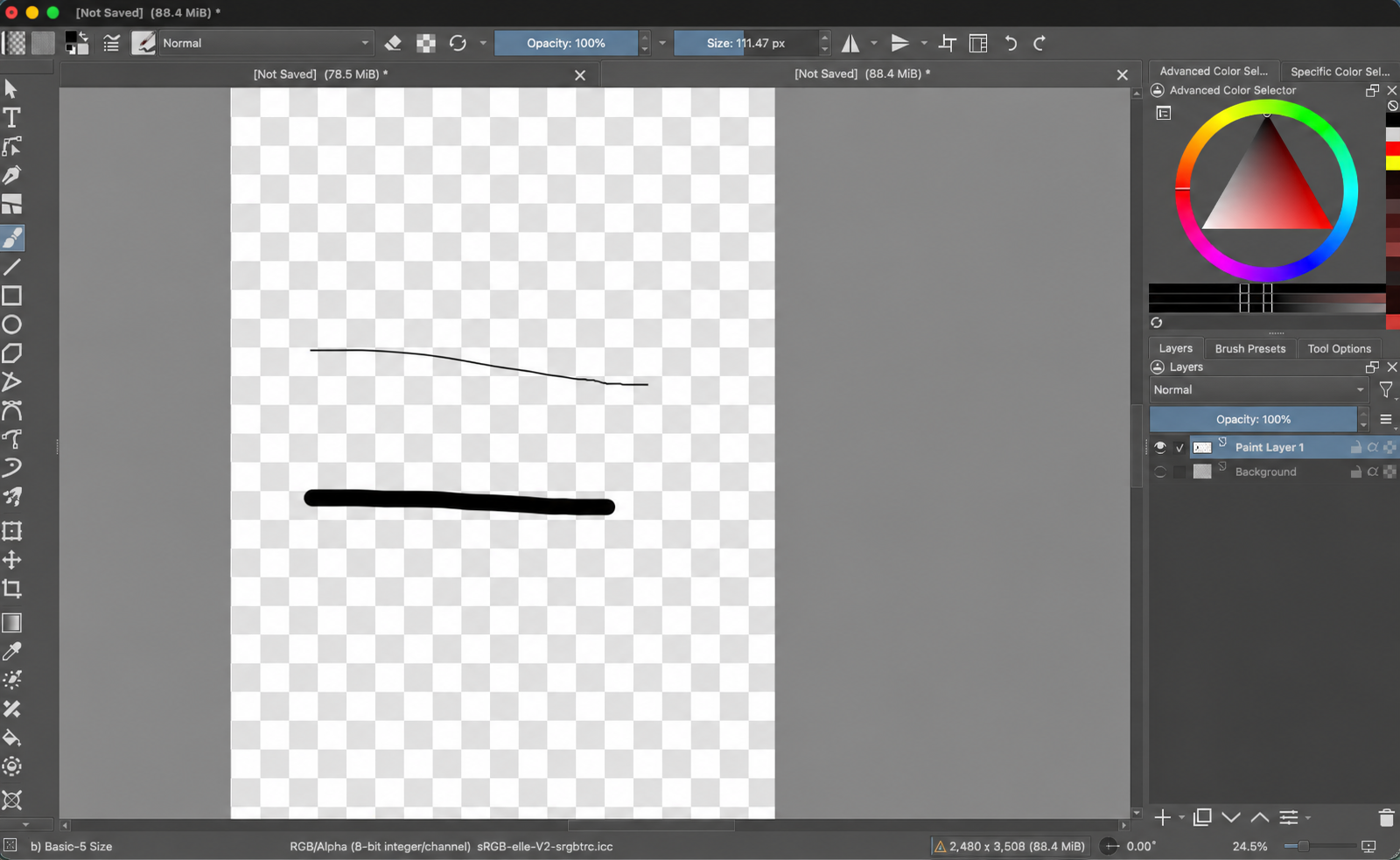
In the previous image, both layer eyes were open, so the white Background layer covered the transparent canvas. Click the eye beside Background to hide that layer. Paint Layer 1 stays visible, so the two strokes remain while the checkerboard appears. The checkerboard means the canvas is transparent.
Choose a brush color
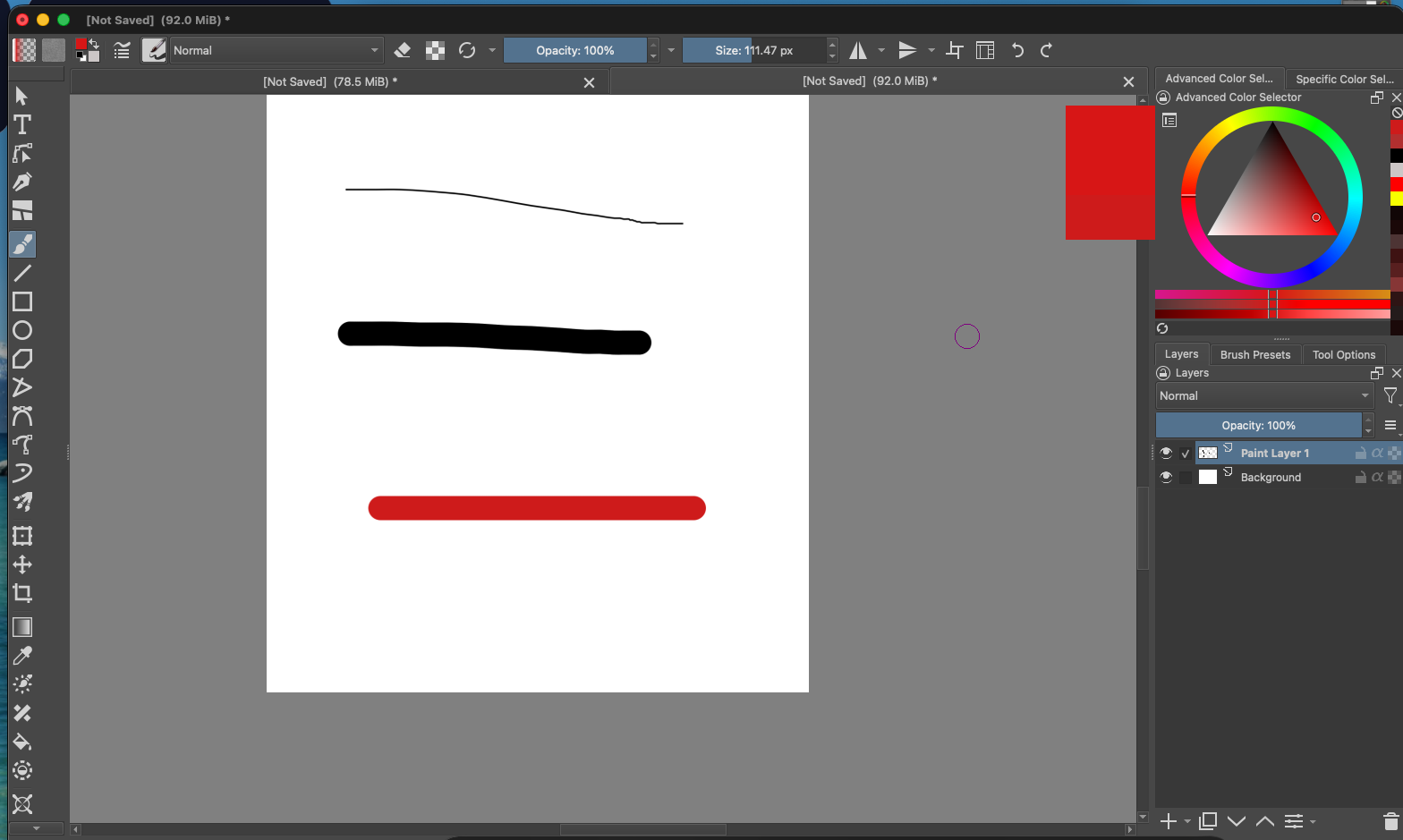
Pick a color in the Advanced Color Selector docker at the upper-right: choose a hue from the ring, then choose a shade inside the triangle. The foreground color swatch in the top toolbar shows the color you picked, and your next brush strokes use it. You can also click that toolbar swatch to open the color dialog.
If you can’t find the Brush Presets tab, open Settings → Dockers → Brush Presets. The exact preset names and thumbnails can vary with Krita versions and installed brush packs.
Try different brush presets
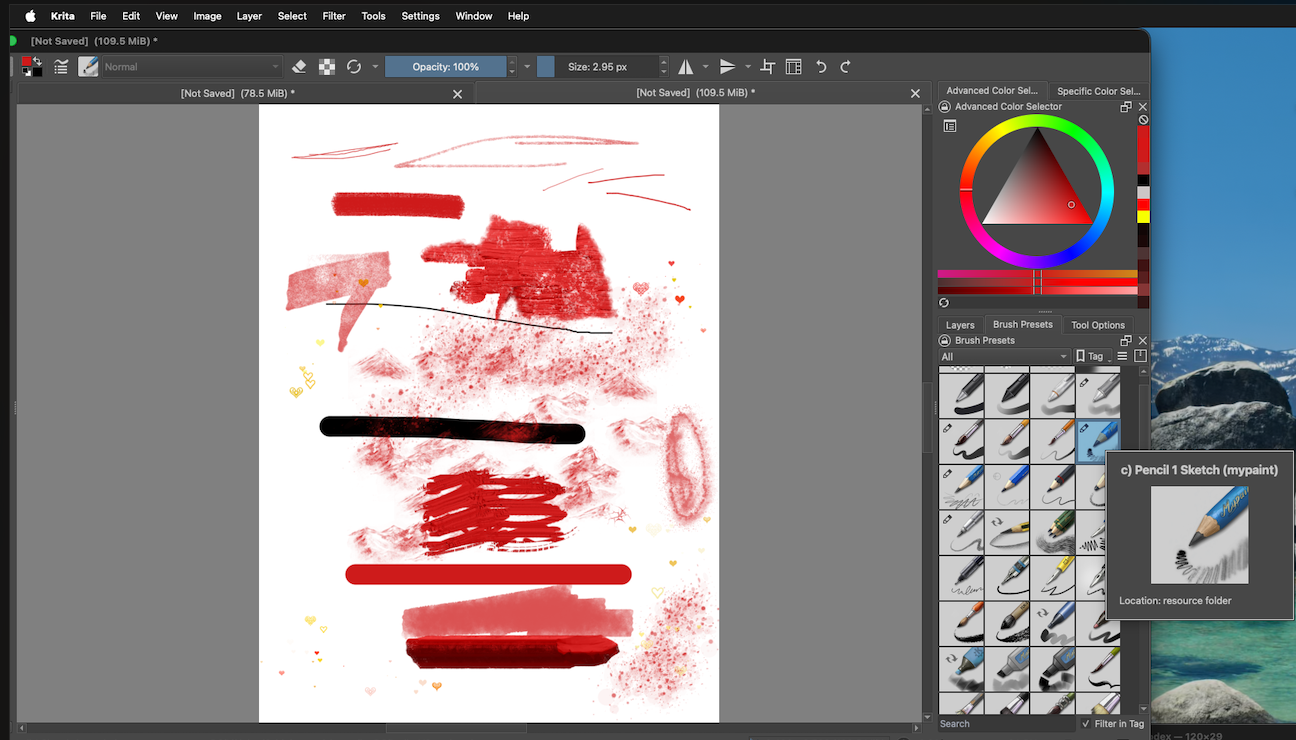
Now try presets from the Brush Presets docker. Different brushes can make smooth, sketchy, textured, or dotted marks. Hover over a thumbnail to see a tooltip with its name, preview, and other details.
Choose an exact color with RGB values
If you know the exact color you want, open the Specific Color Selector tab. Enter its R (red), G (green), and B (blue) values in the marked fields. You can also enter a color code in the Color name field. The foreground color updates to match those values.
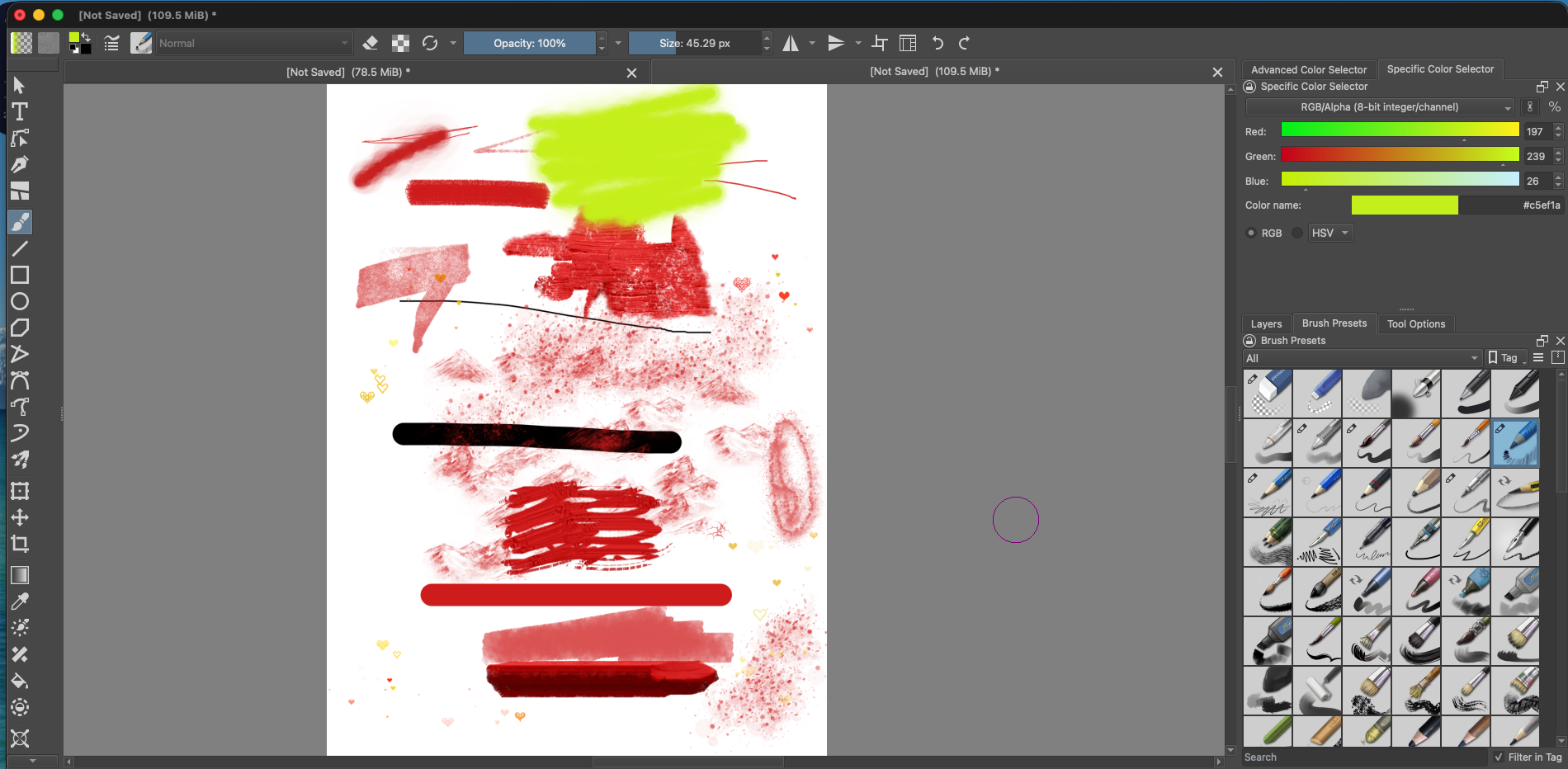
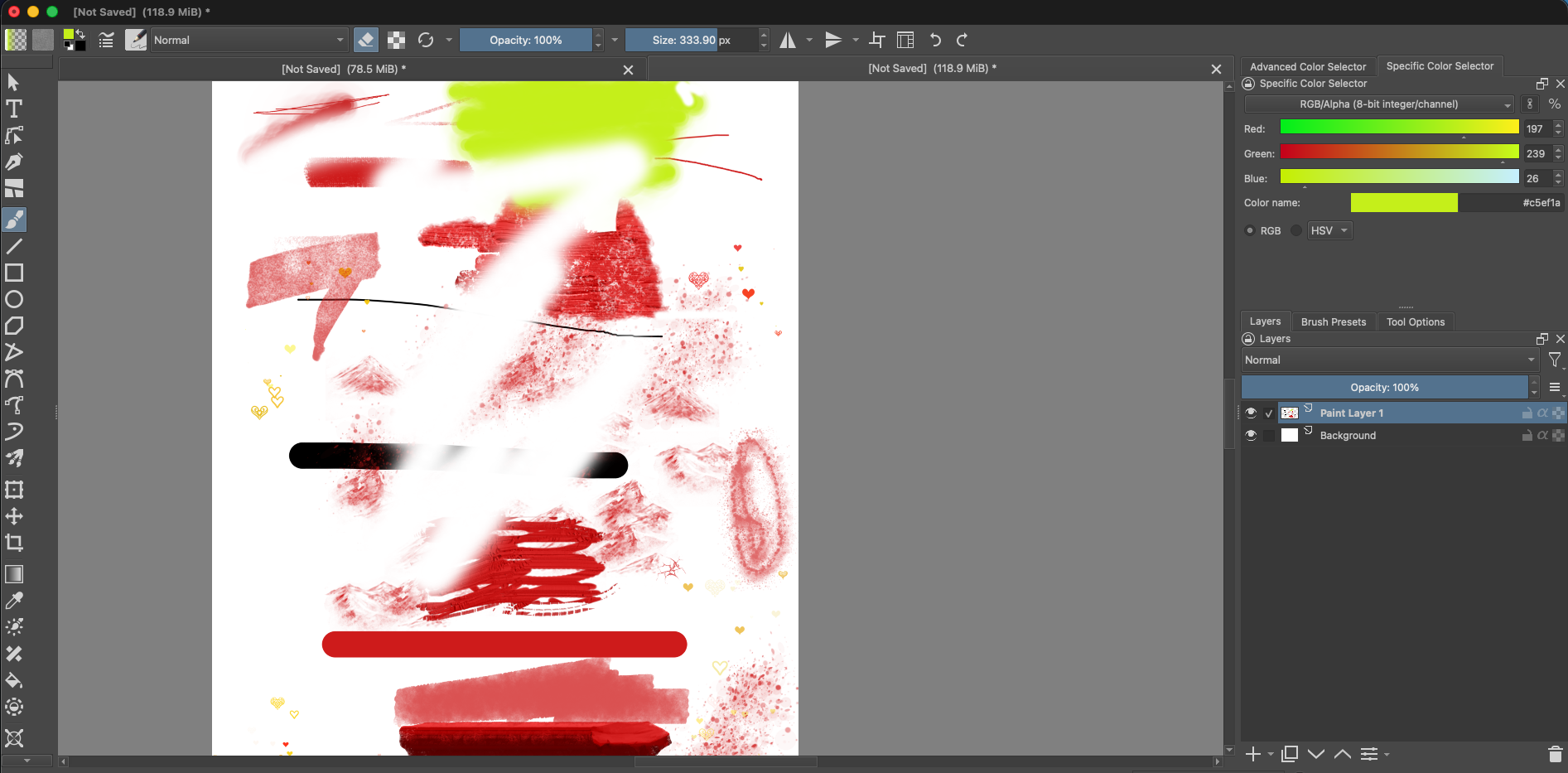
#c5ef1a.Erase with the brush
Select the layer that contains the marks you want to erase. In this example, Paint Layer 1 is selected. Click the eraser control in the top toolbar, adjust the Size field, and drag over the canvas. When the eraser control is selected, your current brush erases instead of painting, so its shape and texture affect the mark. Click the control again to return to drawing. You can also choose a different eraser-style preset from Brush Presets.
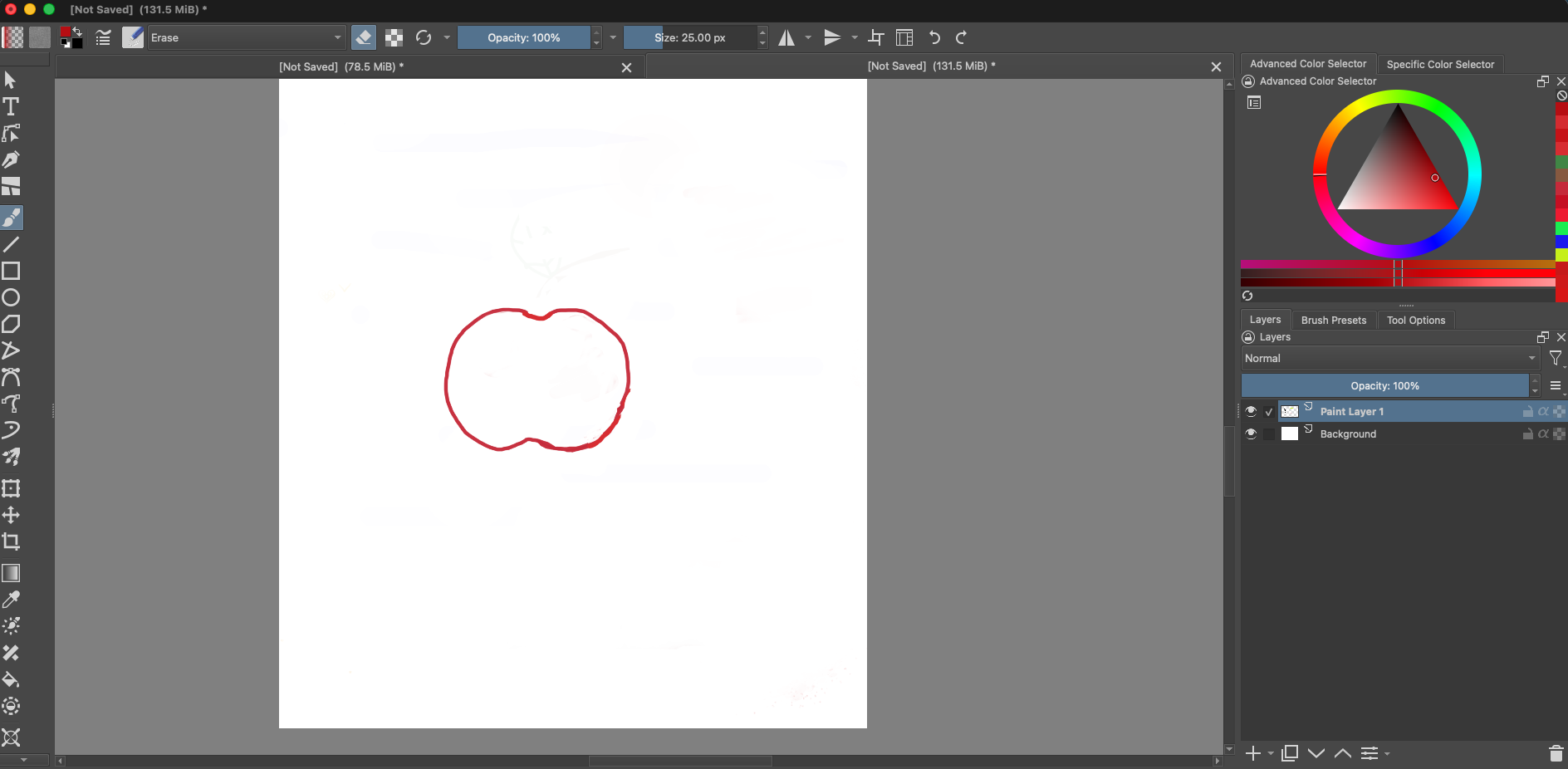
Practice: draw an apple with layers
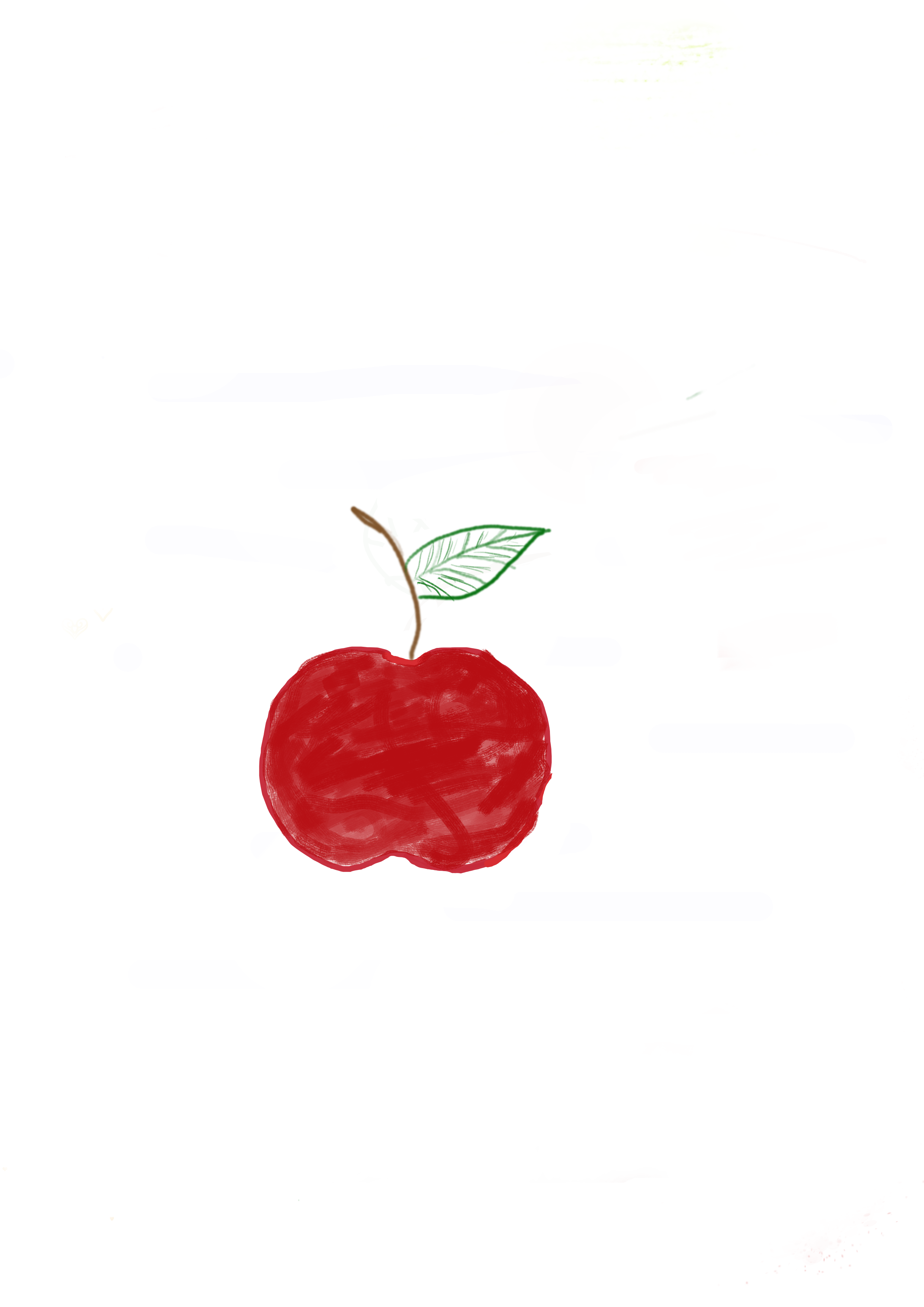
Here is a small example using the brushes, colors, and layers from this lesson. Start with a simple apple outline on Paint Layer 1.
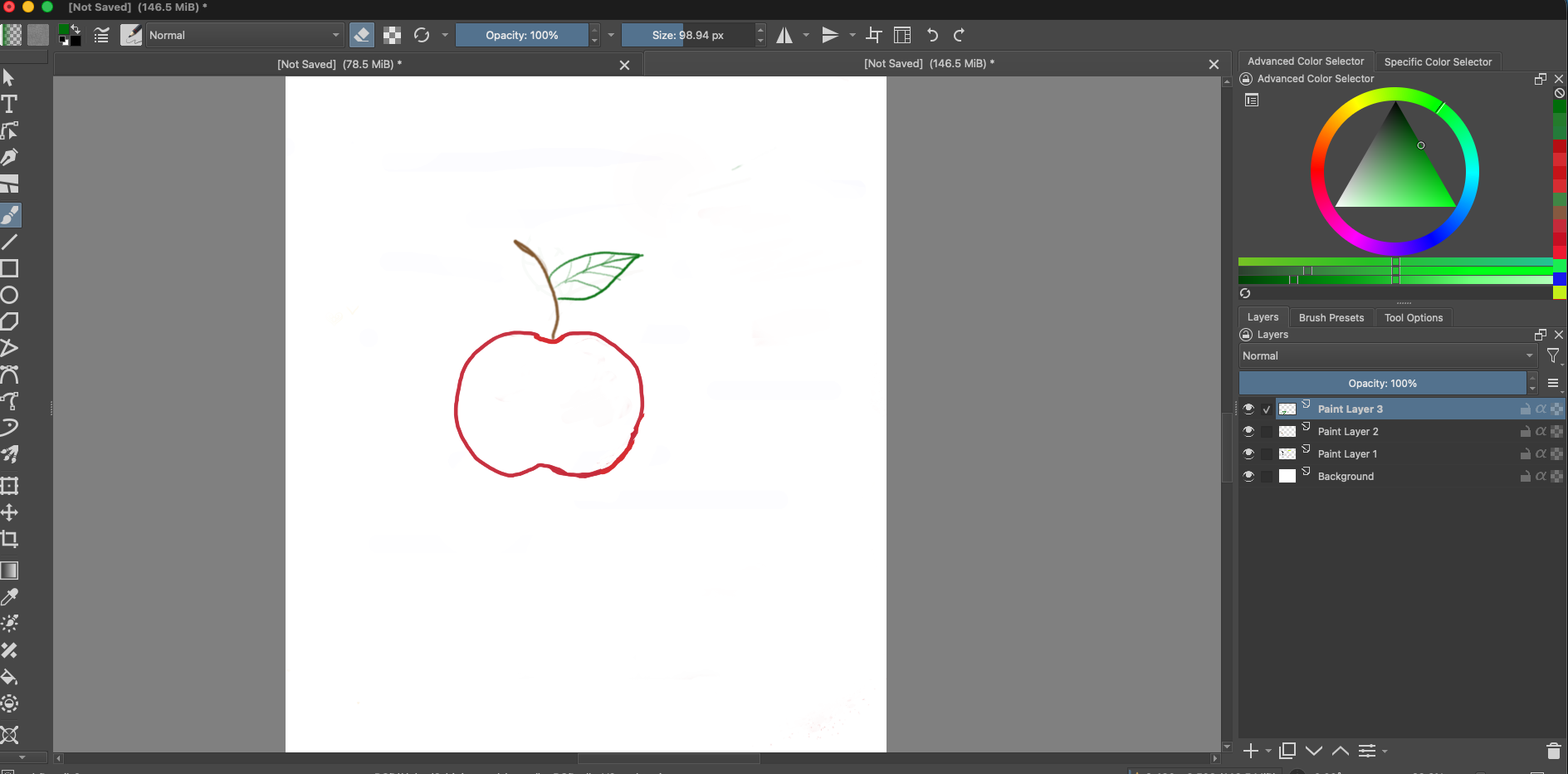
Add a new paint layer for each part you want to edit separately. In this example, the stem is on Paint Layer 2 and the leaf is on Paint Layer 3. The Layers docker lists the leaf above the stem and the apple outline.
You can show or hide a layer without deleting its contents. Click the eye icon beside a layer to toggle its visibility.
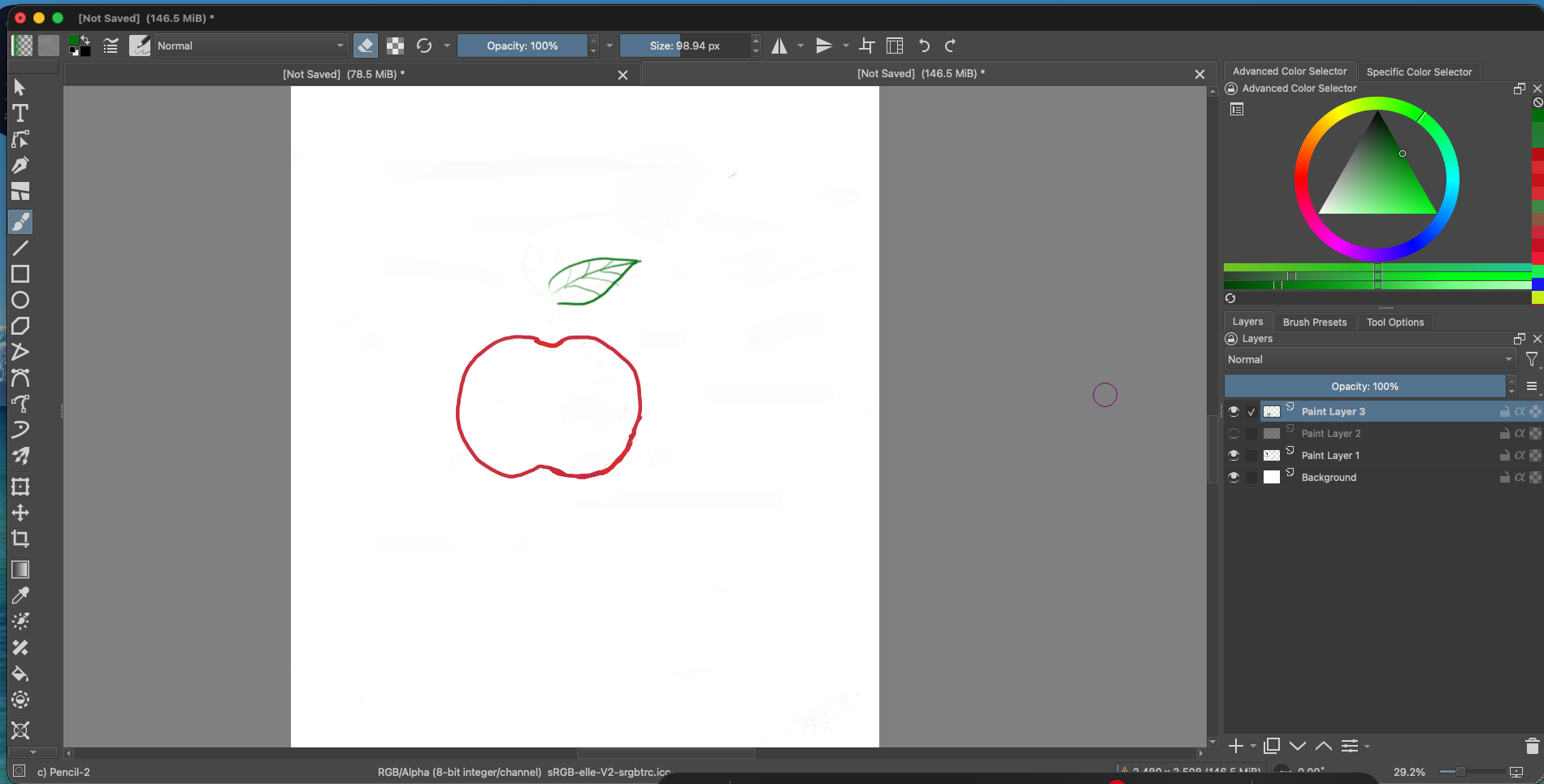
After checking the layer visibility, paint the apple and refine any details you like. When you are ready to keep your work, save it as a Krita document so the layers stay editable.
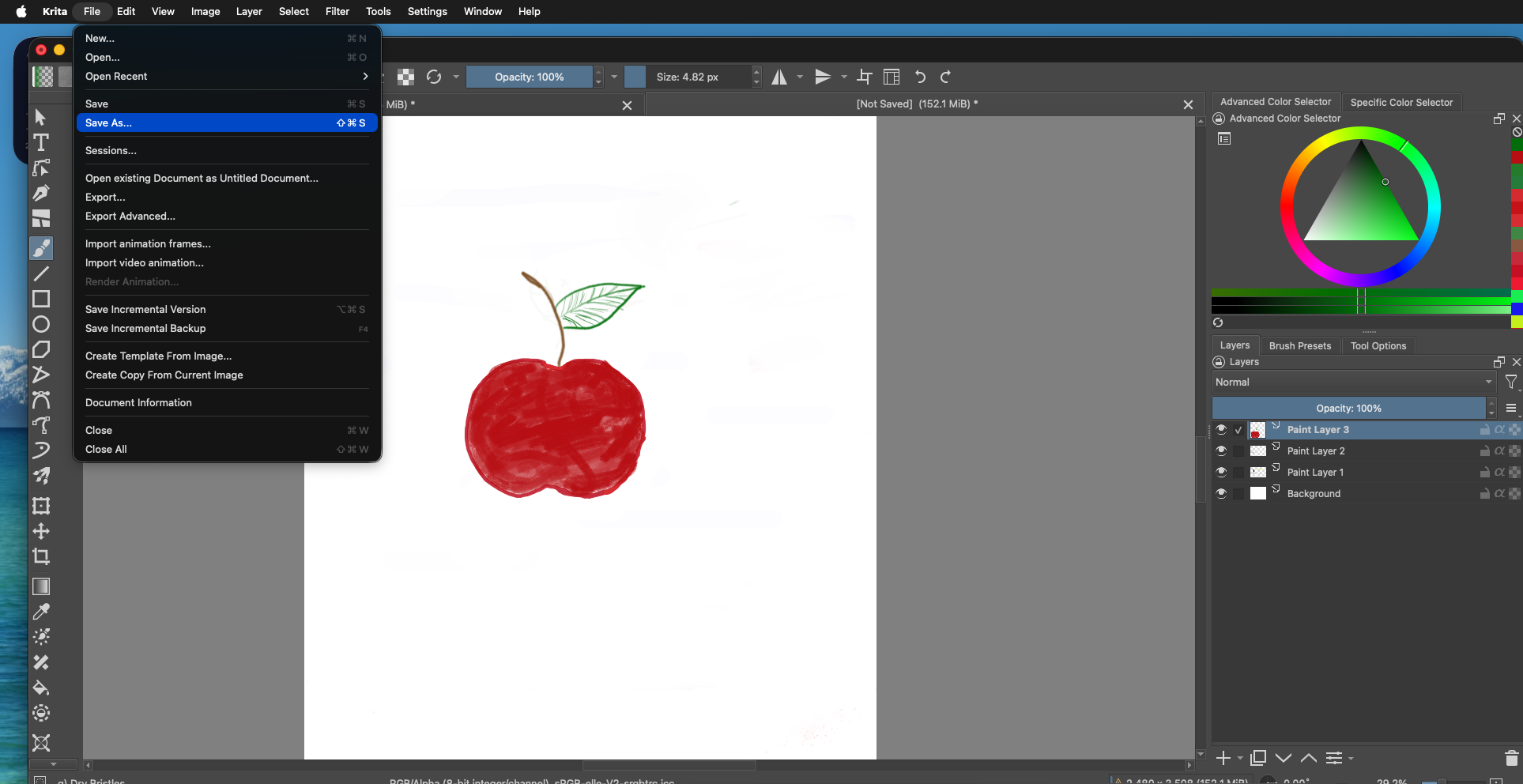
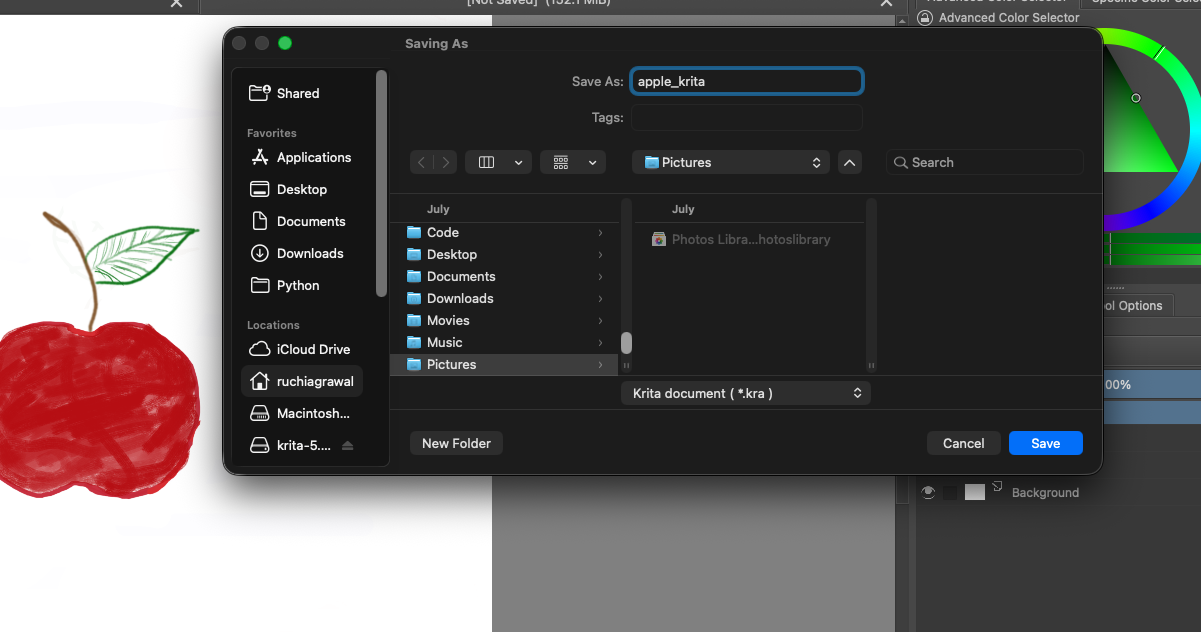
.kra format preserves your layers for future editing.To make an image you can easily share or upload, export a PNG copy. Your saved .kra project remains available with its layers.
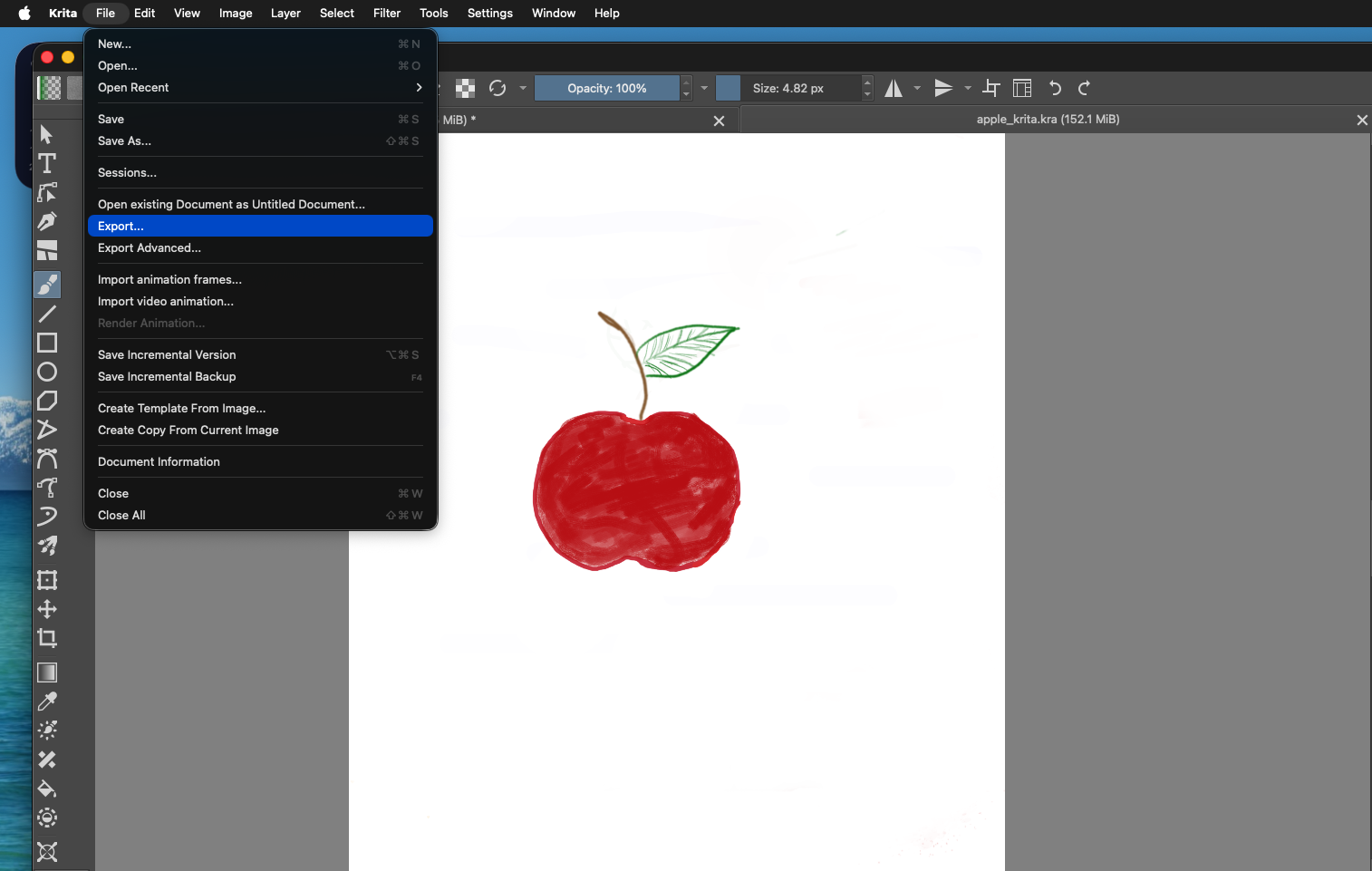
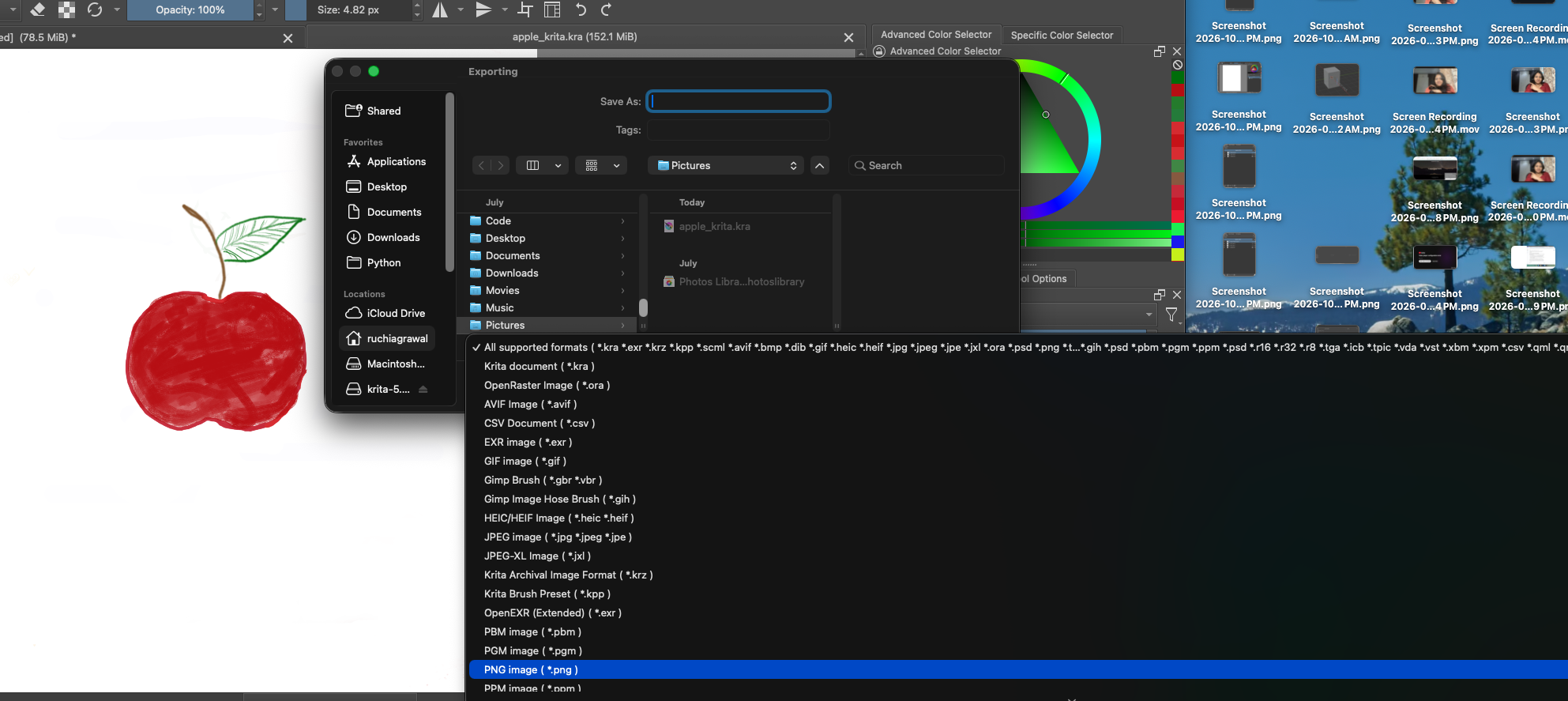
apple_krita.png, then choose PNG image (*.png) from the file type list and save. The list also includes other formats, such as JPEG and GIF.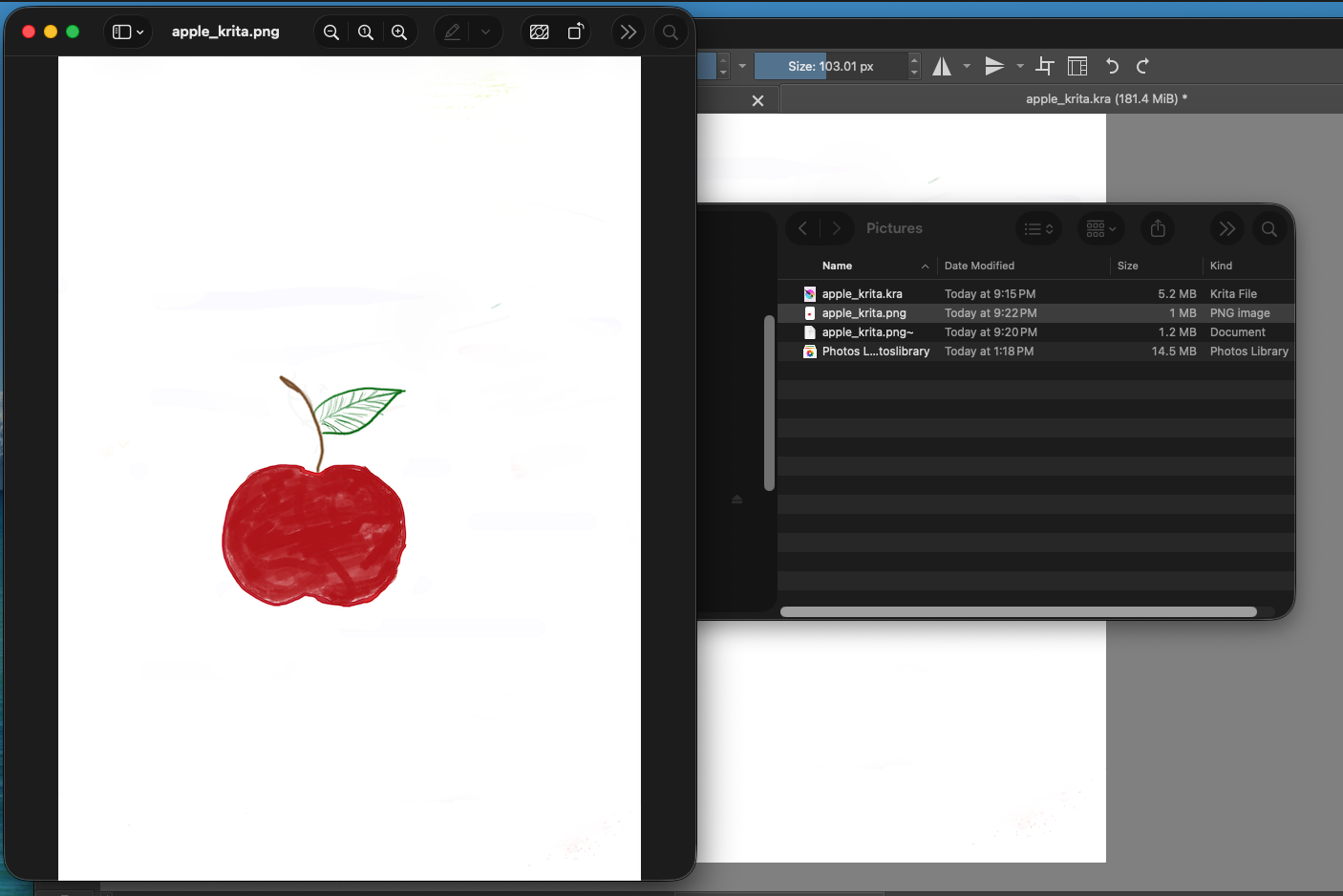
.kra file too; PNG is a flattened image and does not retain the editable layers.Practice files
Download the apple example
Open the Krita file to inspect and edit its layers. The PNG is the exported, flattened image.