First, meet the Timeline
Layers run down; frames run across
The Timeline docker is a grid. Each row belongs to a layer, and each column is a frame in time. A keyframe stores a drawing at a particular frame. If the next keyframe comes later, the drawing stays on screen until then.
- Frame number: one moment in the animation. Krita starts counting at frame 0.
- Keyframe: a cell that contains a drawing. A blank frame can mark a new drawing too.
- Playhead: the vertical marker showing which frame you are viewing or editing.
- Playback: plays the frames in the chosen range at the selected frames per second (FPS).
Show the Animation Timeline docker
- In Krita’s top menu, choose Window → Workspace → Animation. Krita switches to an animation-friendly workspace and shows the Animation Timeline docker, usually along the bottom of the window.
- If you want to keep your current workspace, open Settings → Dockers → Animation Timeline to show that docker directly. If the menu item is checked but you cannot see it, look for a tab at the bottom or edges of the Krita window.
- The docker has playback controls along its top, a layer list on the left, and a frame grid to the right. If your animated layer is missing from the list, select it in the Layers docker and use its pin control in the Timeline to keep it visible there.
Set up the bouncing ball
- Open your ball drawing and choose File → Save As. Save a working copy as bouncing_ball.kra.
- Keep the original ball as a guide if helpful. Add a new Paint Layer above it and name it Ball Animation. Leave this animation layer transparent; onion skin needs transparent areas to show correctly.
- Select Ball Animation so it is the active layer. In its Timeline row, right-click the square at frame 0 and choose Create Blank Frame. This first keyframe turns the paint layer into an animated layer. Draw the ball at its starting position.
- At frame 2, right-click the square and choose Create Blank Frame for a fresh drawing. For alternating-frame animation, repeat at frames 4, 6, 8, and so on, up to frame 24. The drawings in between will hold the previous keyframe.
- Open the Animation Timeline settings menu at the right end of its toolbar. Set the frame rate to 25 FPS and playback range to 0–24. That is 25 frame slots, about one second of playback.
Animate the ball through its bounce
Start with these four key positions, then add small changes on alternating frames to carry the ball through the motion. For a 25-frame timeline, place drawings at frames 0, 2, 4, 6 … 24. This gives you 13 drawings; each is held over the next odd-numbered frame.
Place the ball near the top of its path, just before it starts falling.
Ball begins to dropMove the ball lower. Let it travel farther between drawings as it speeds up.
Gravity speeds it upPlace it at the ground. Flatten it slightly to show the squash at impact.
Squash on contactMove it upward and restore its round shape as it rebounds.
Stretch slightly on the way upKeep the squash and stretch subtle: the ball should look a little wider and flatter at impact, and slightly taller while rising. If you are animating a plain ball, keep its outline and color the same in every frame.
Use Onion Skin to keep drawings aligned
Onion Skin shows nearby frames as faint colors while you draw the current position. In the Timeline, select a frame on Ball Animation, then turn on the layer’s onion-skin lightbulb. Use the onion-skin controls to show the previous or next frame. The exact buttons may look different across Krita versions.
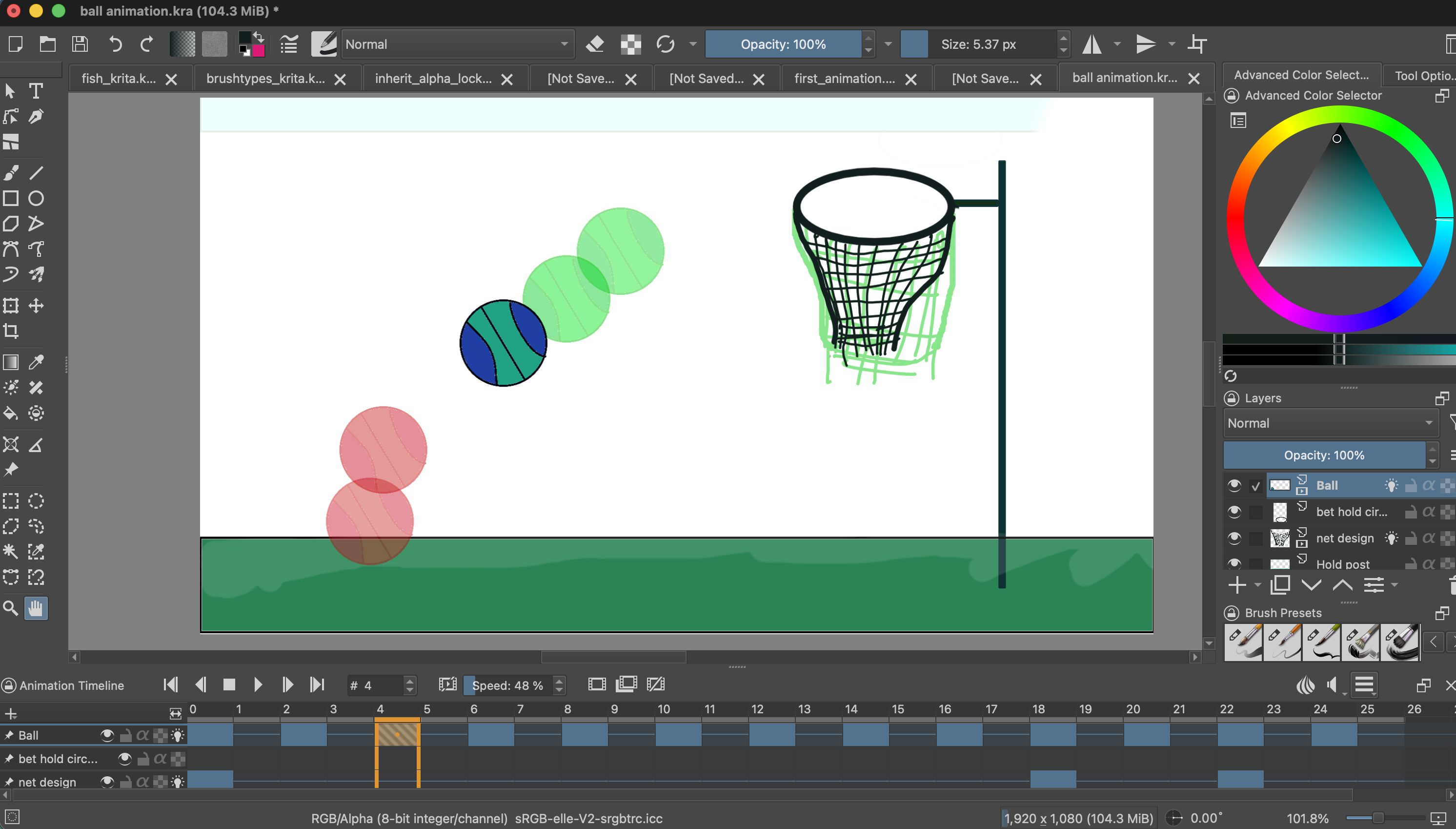
Reference layer tip: Keep the original ball visible while drawing if it helps you compare size and color. Hide the reference layer or group before playback, or the unmoving original will remain underneath the moving ball.
Preview and adjust
- Set the play range to 0–24, then press the Timeline’s Play button.
- If the bounce feels too fast, lower the FPS. If it feels jumpy, add drawings on the in-between frames instead of holding the previous drawing there.
- If a pose appears in the wrong place, select its frame and adjust the drawing with the Transform Tool, or redraw it with Onion Skin on.
- Save the .kra file to keep the layers and animation frames editable.