Start in the Layers docker
Open a layer’s properties
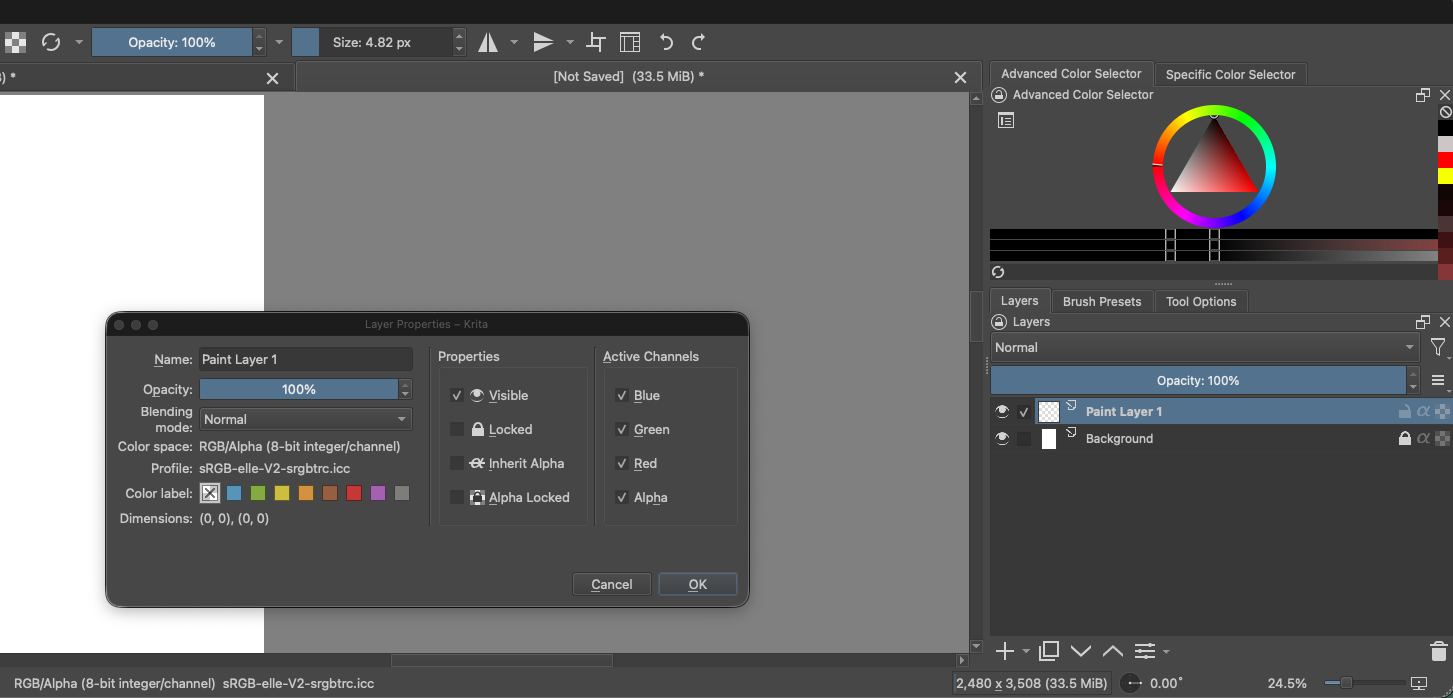
Select a layer in the Layers docker on the right. To see its full properties, right-click the layer and choose Properties. The exact icons shown in each row can vary with Krita versions and workspace layout.
Name and organize layers
Double-click a layer name to rename it. Clear names make it easier to select the right part of the picture. Names such as Outline, Color, Shading, and Background are easier to scan than several rows called Paint Layer 2.
Drag layers up or down in the stack to change which artwork appears in front. Drag related layers into a group to keep the list tidy. You can also right-click a layer and assign a color label to help find related layers.
Visibility and layer opacity
- Eye icon / Visible: click it to show or hide that layer. This is a quick way to compare a change with the original.
- Opacity: lower the layer’s opacity to make all its contents more transparent. Return it to 100% for full strength.
- Blending mode: controls how the layer’s colors combine with the layers below. Start with Normal. Multiply is often useful for darkening shadows; Screen can lighten for highlights.
Layer opacity affects the whole layer. Brush opacity affects only strokes you paint. If the entire drawing fades when you adjust opacity in the Layers docker, that is expected.
Two different locks
Krita has a general layer lock and an Alpha Lock. They solve different problems:
Lock the layer to protect everything on it
Turn on Locked (the padlock control) when you want to prevent accidental changes to that layer. You can still select and view it, but you cannot paint on or modify its contents until you unlock it.
Use Alpha Lock to protect the painted silhouette
Turn on Alpha Locked for a paint layer to keep its transparent pixels transparent. New paint stays on the pixels that already have content. This is handy for recoloring or shading an existing shape without painting beyond its edges.
See Alpha Lock on a real layer
These screenshots compare three states. The checkerboard represents transparent pixels. A full layer lock prevents all edits. With both locks off, you can paint on transparent or painted parts. Alpha Lock protects transparent pixels from new paint while leaving existing painted pixels editable.
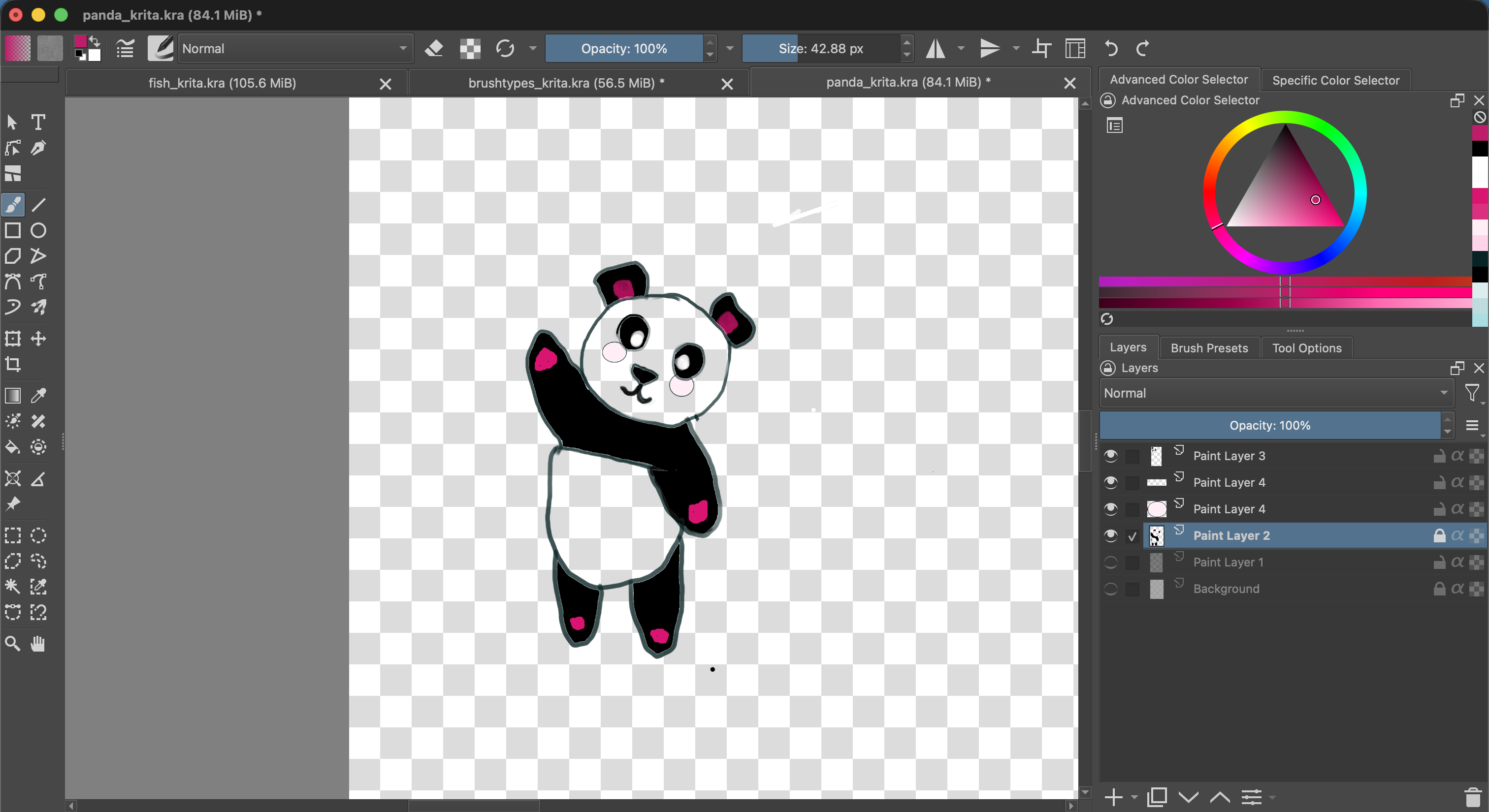 LAYER LOCK ON · edits are blocked
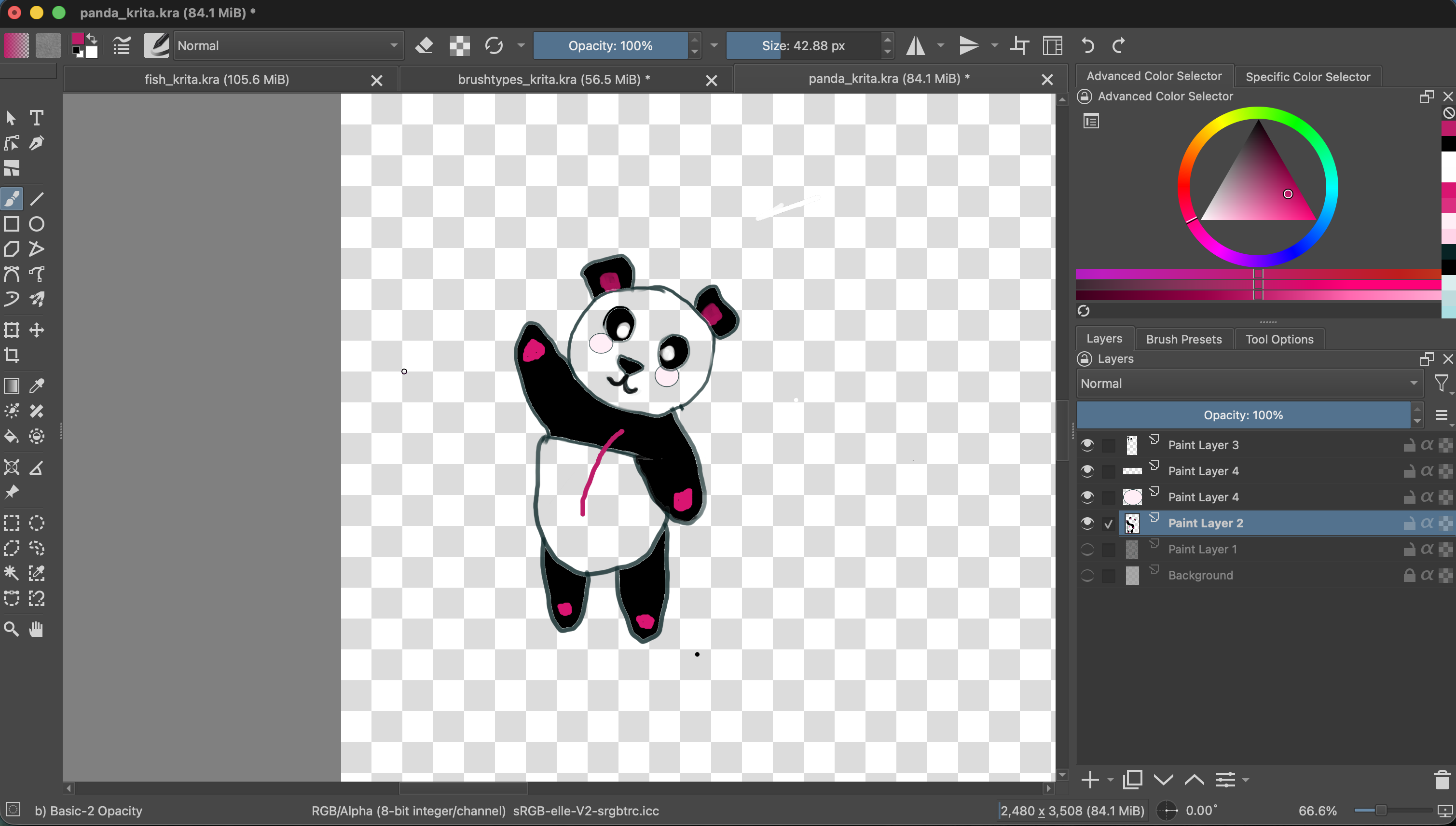 BOTH LOCKS OFF · paint can reach transparent areas
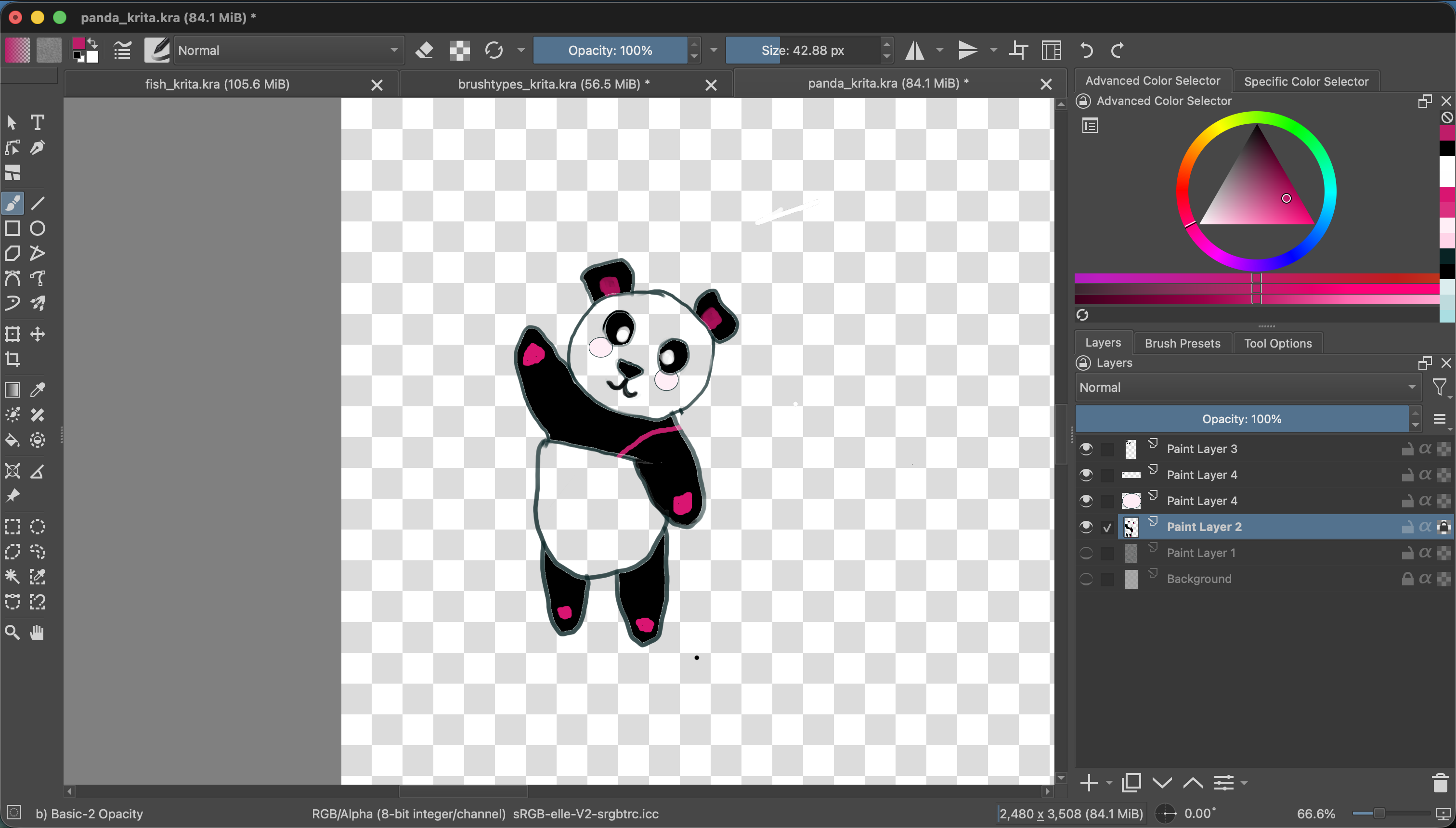 ALPHA LOCK ON · transparent pixels protected; painted pixels editable
Quick way to remember: layer lock protects the whole layer from editing; Alpha Lock protects the layer’s transparency while still letting you paint over its existing pixels.
Inherit Alpha: clip one layer to the layers below
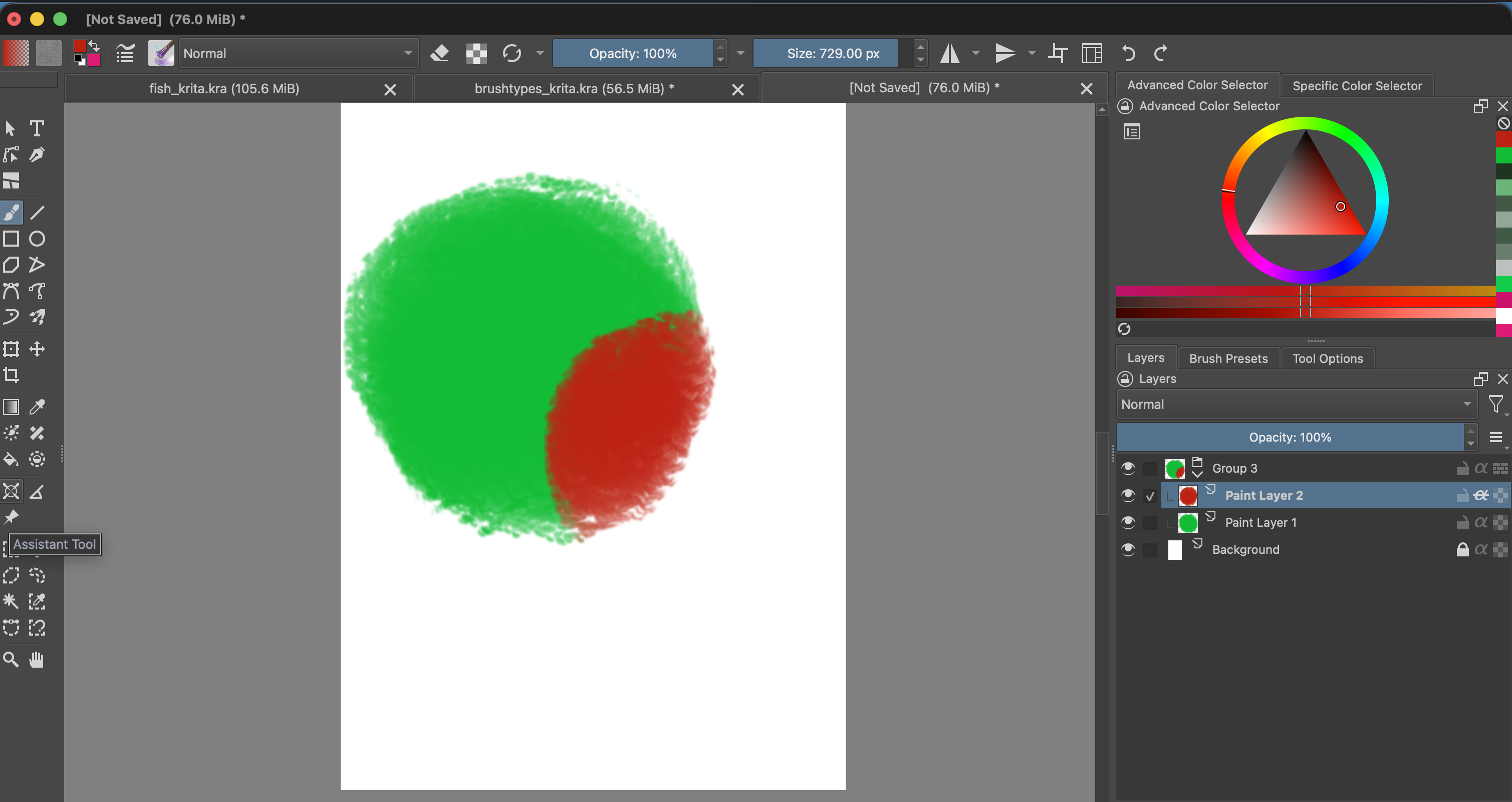
Inherit Alpha uses the visible pixels of layers below it in the same group as a clipping boundary. For example, a shading layer can inherit alpha from a base-color layer so the shading stays inside the shape. It is different from Alpha Lock: Alpha Lock constrains painting on the same layer, while Inherit Alpha clips a separate layer to content below it.
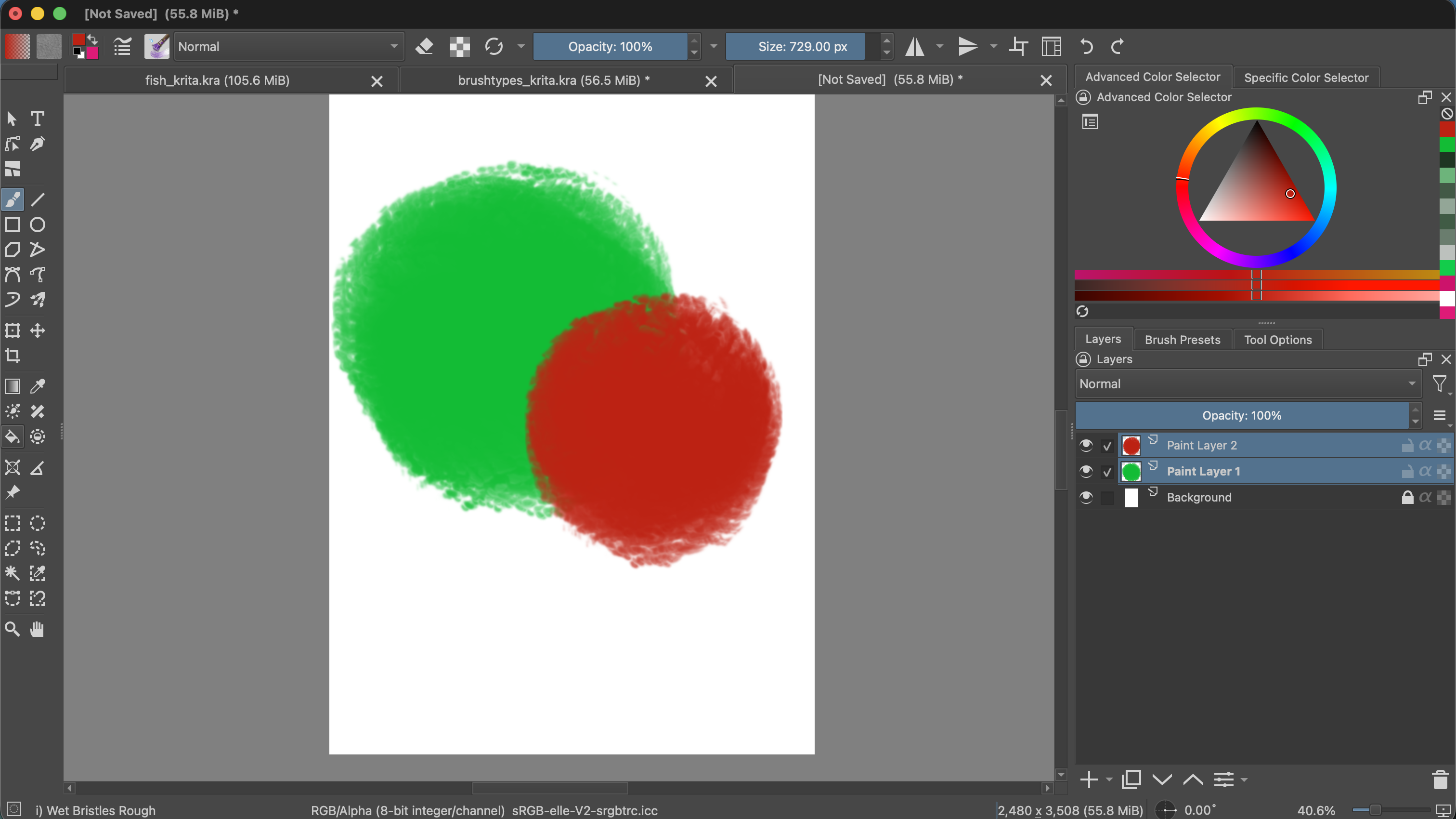
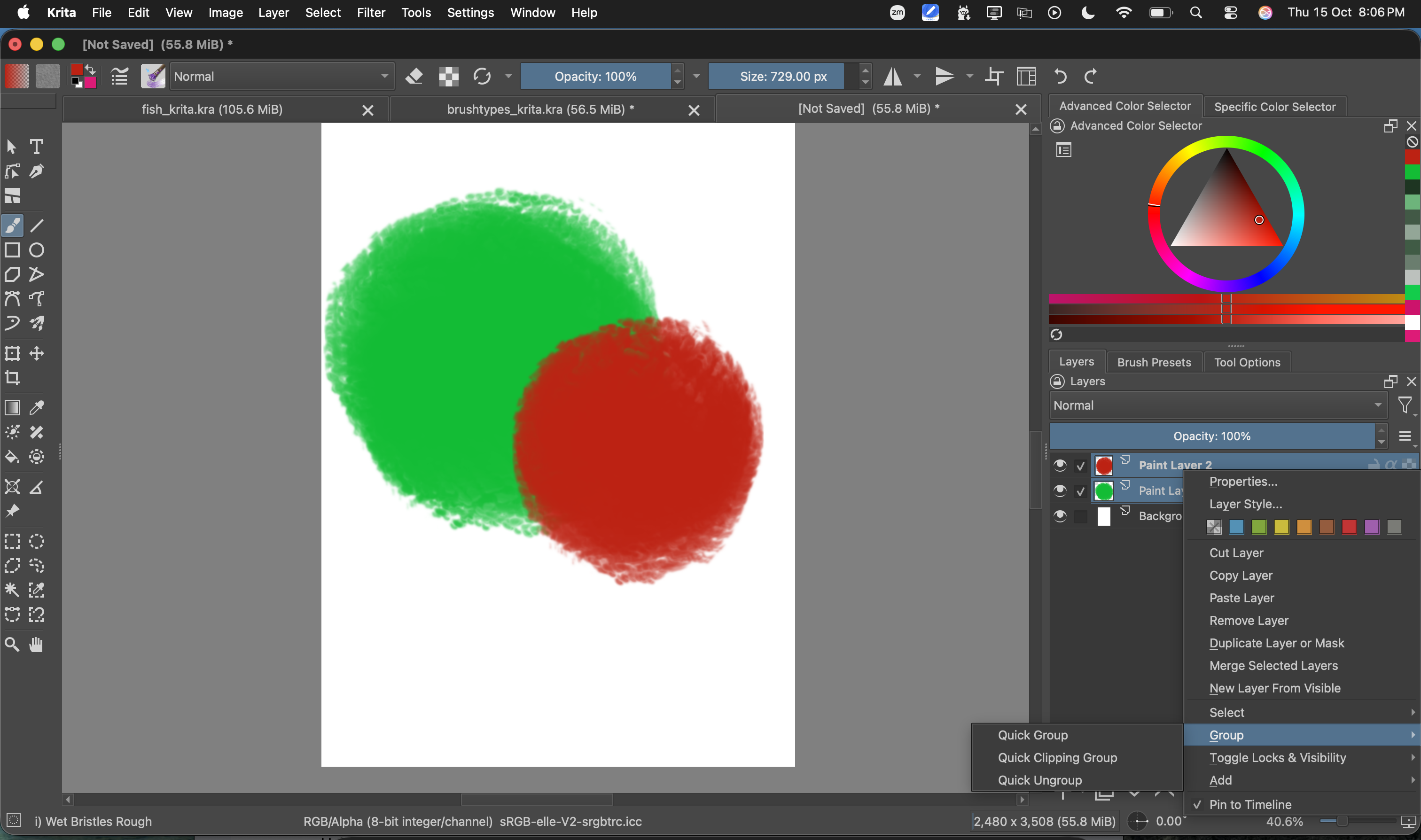
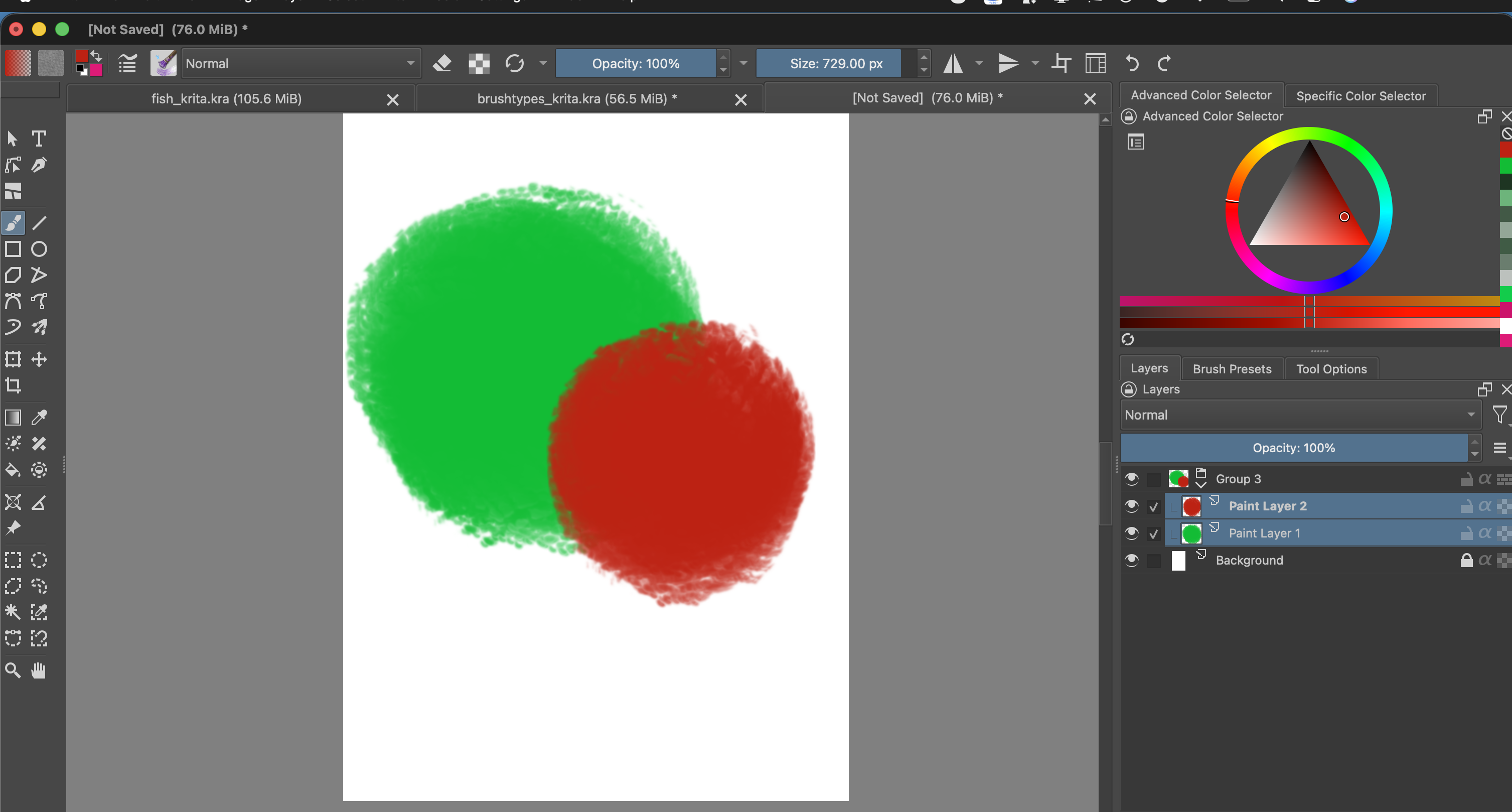
Put the base color and shading layer together in a group, keep the base color below the shading, and turn on Inherit Alpha for the shading layer. You can create a clipping group by selecting the relevant paint layers, right-clicking, and choosing Group → Quick Clipping Group. Avoid using a full-page white Background as the clipping base, because it fills the whole canvas area.
Watch the clipping group take shape
This demo uses a green circle as the base shape and a red circle on a separate layer. The checkerboard around them is transparent canvas. Follow the sequence to see how the group and Inherit Alpha work together.
Other settings you can leave as they are
The Layer Properties dialog also shows the color space, profile, dimensions, and active color channels. For ordinary painting, leave the active Red, Green, Blue, and Alpha channels enabled. The default color space and profile are fine for this exercise.
If a layer will not change
- You cannot paint: check whether the layer is locked and whether the correct layer is selected.
- Your paint only appears on existing marks: Alpha Lock may be on. Turn it off to paint on transparent parts of the layer.
- A layer disappeared: check its eye icon and make sure another layer is not covering it.
- The result looks unexpectedly dark or bright: set the layer’s blending mode back to Normal.