First, choose a preset
A sketch brush and a paint brush
Open the Brush Presets docker. If it is hidden, use Settings → Dockers → Brush Presets. The preset list contains ready-made brushes; the Brush Settings Editor, which we’ll open next, changes properties of the brush you selected.
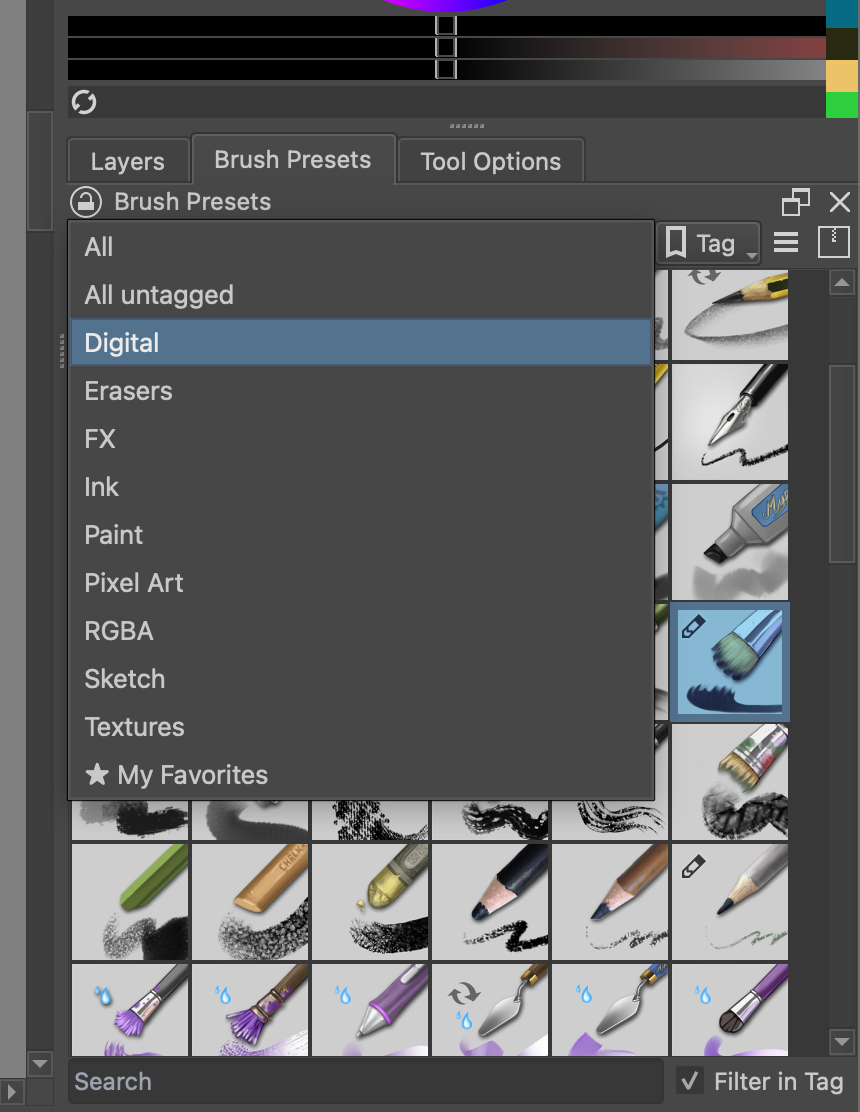
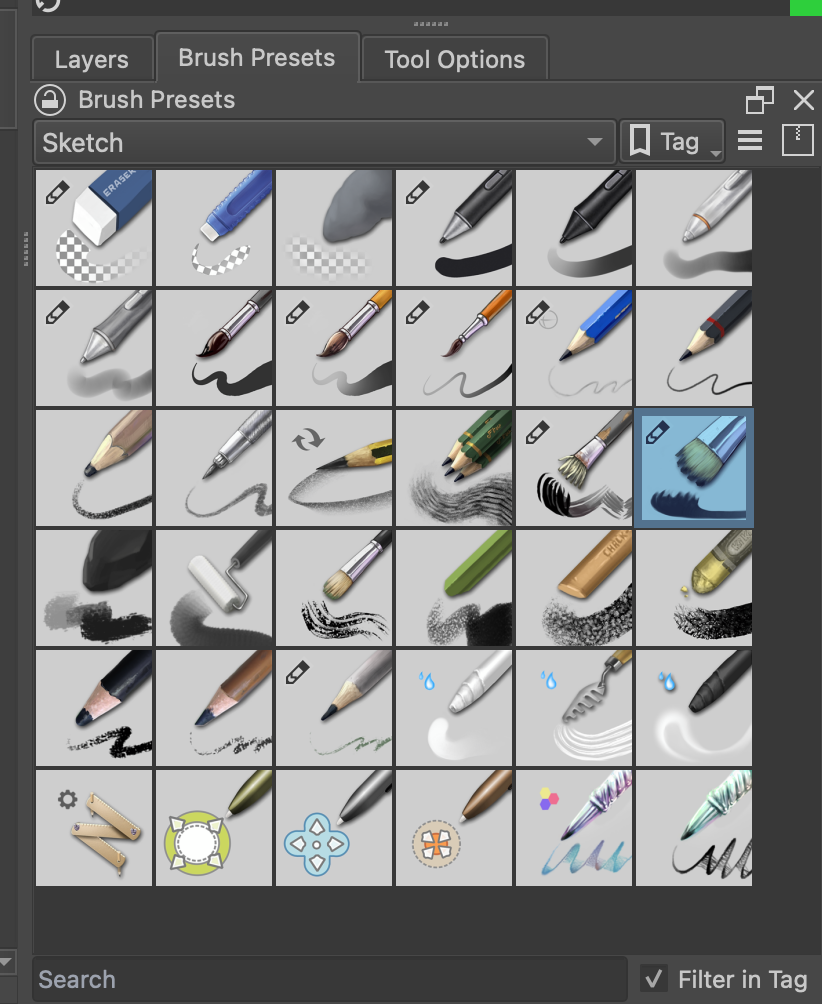
For sketching: choose a pencil-style preset
Choose the Sketch tag or search for Pencil. Pick a pencil-like preset and make a few light construction lines on a new paint layer. Try loose circles and simple lines, then draw over them more firmly to define the shape. Pencil presets can look different across Krita versions and resource packs.
For painting: choose a basic paint brush
Search for Basic-5 or choose another simple, round brush. Use it to paint a solid patch of color on a separate layer. A basic brush is a useful starting point because its size and opacity are easy to understand.
Open Brush Settings and inspect the properties
Choose a brush preset first, then open its Brush Settings Editor with F5. On a Mac, try Fn + F5 if the function key controls a system feature. You can also click the Brush Settings button in the top toolbar, near the preset controls. This editor changes the selected brush; it is different from the Brush Presets docker.
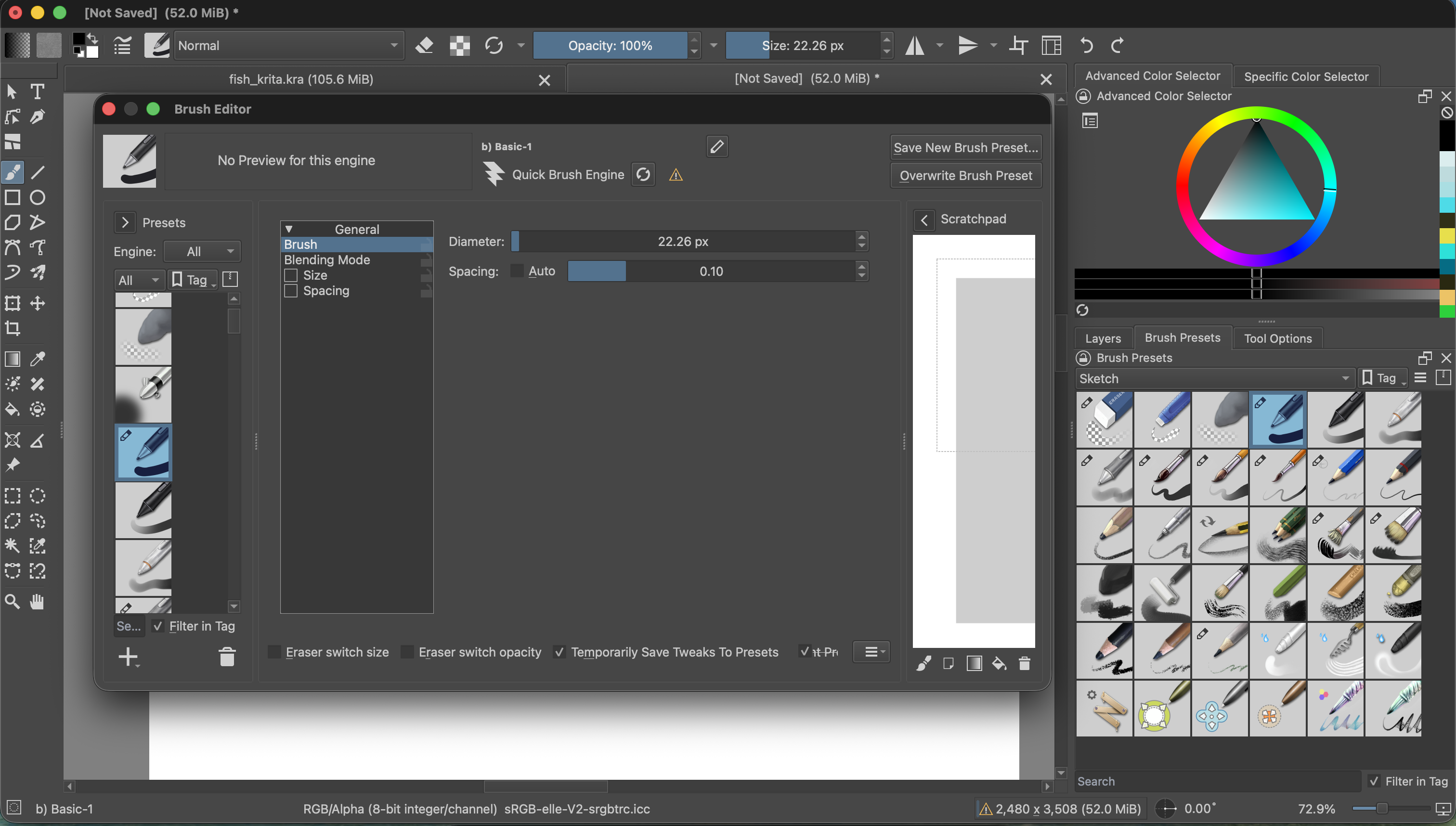
- Size: controls how wide the mark is. Adjust it to make fine sketch lines or broad paint strokes.
- Opacity: controls how transparent a stroke is. Lower opacity lets marks underneath show through.
- Flow: controls how much paint each brush dab lays down. Lower flow builds color more gradually as you paint over an area.
- Brush tip and texture: change the shape or surface of the mark. A round tip makes smooth strokes; a textured tip can look more like pencil, chalk, or dry paint.
The available settings depend on the brush preset and its brush engine. For a first exercise, change only size and opacity so it’s easy to see what each one does.
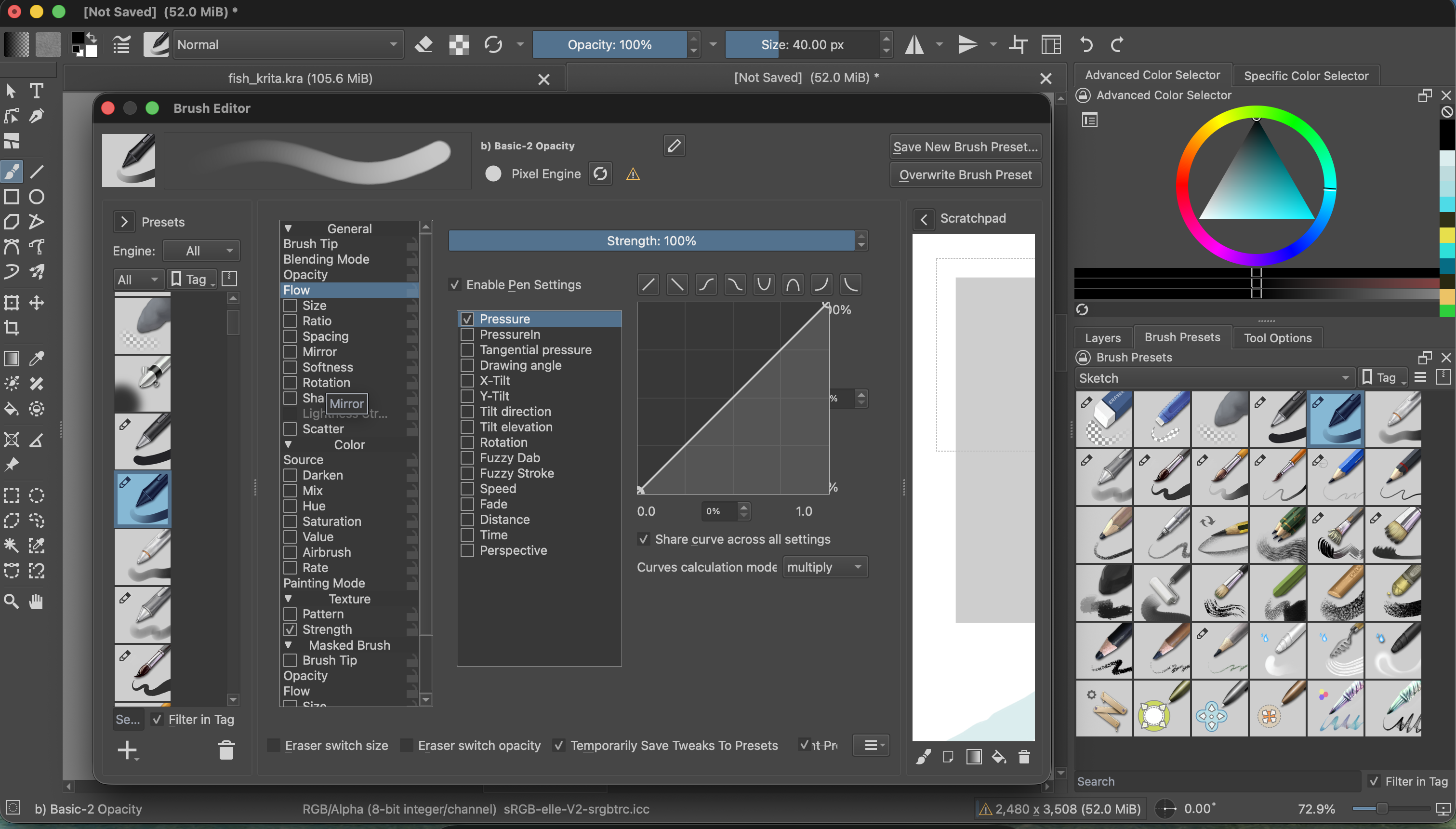
Make brush size respond to pen pressure
Pressure sensitivity needs a pressure-sensitive stylus and tablet that Krita recognizes. A mouse or trackpad cannot report how firmly you press. Many tablet-oriented presets already use pressure; the steps below let you check or enable it for a brush.
- In the Brush Settings Editor, click Size in the settings list.
- Make sure the Size setting is enabled, then look at its Sensors list.
- Turn on Pressure. The pressure curve maps a light press to a smaller mark and a harder press to a larger one.
- Draw a few strokes on the editor’s scratch pad or on a spare paint layer. Start with a light touch, press more firmly through the stroke, then lift gradually.
If the line does not change thickness, check whether your selected preset has Size enabled and Pressure checked. Also check that your tablet driver is installed and that Krita receives pen input. If you are using a mouse or trackpad, use the Size control in the top toolbar to practice making strokes of different widths.
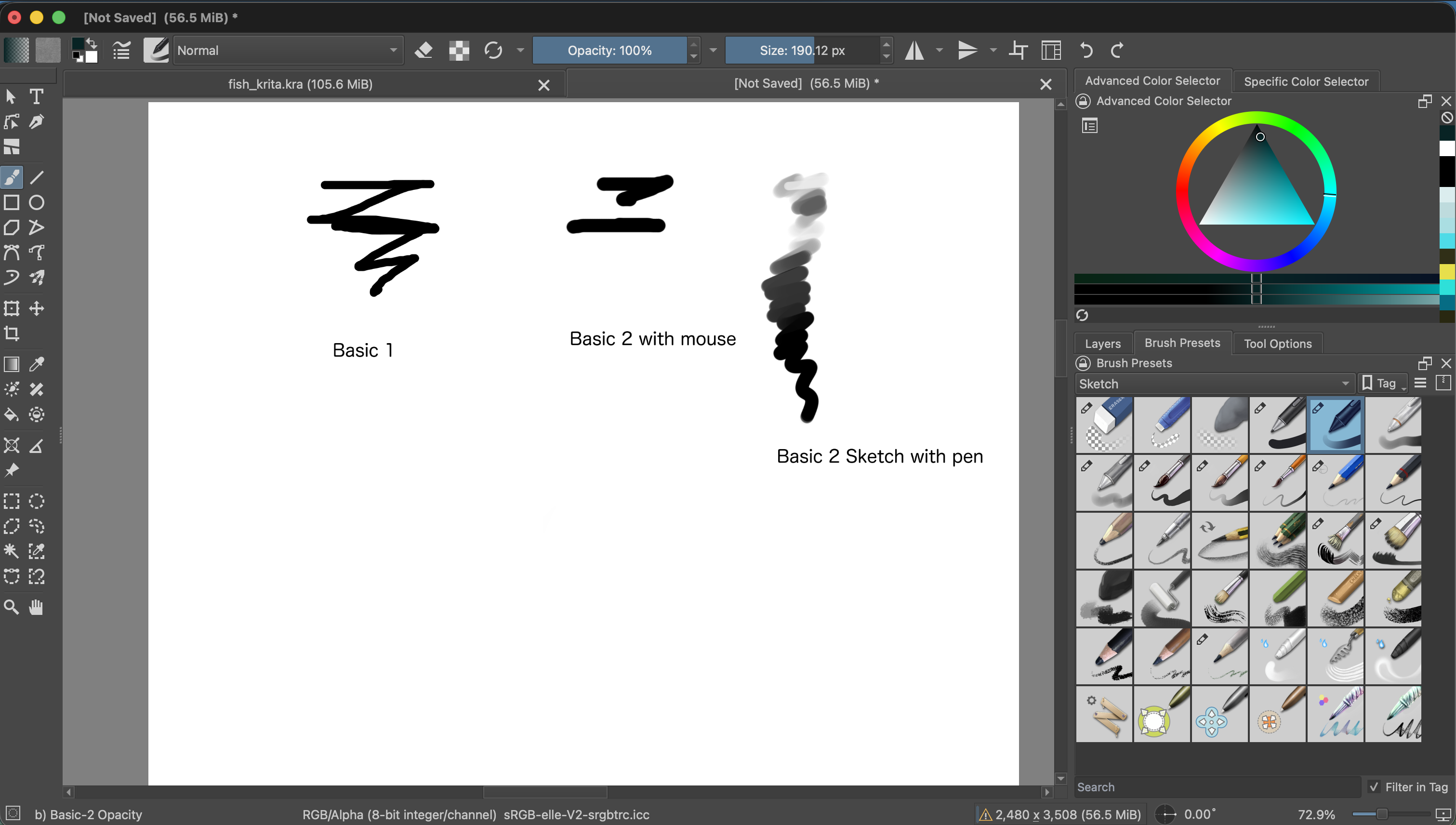
Try pressure with opacity too
For a softer sketch or transparent paint, choose Opacity in the settings list and enable Pressure under its Sensors. A light press then lays down a faint stroke; pressing harder makes it more opaque. Change one property at a time, and test the brush before painting over your fish artwork.
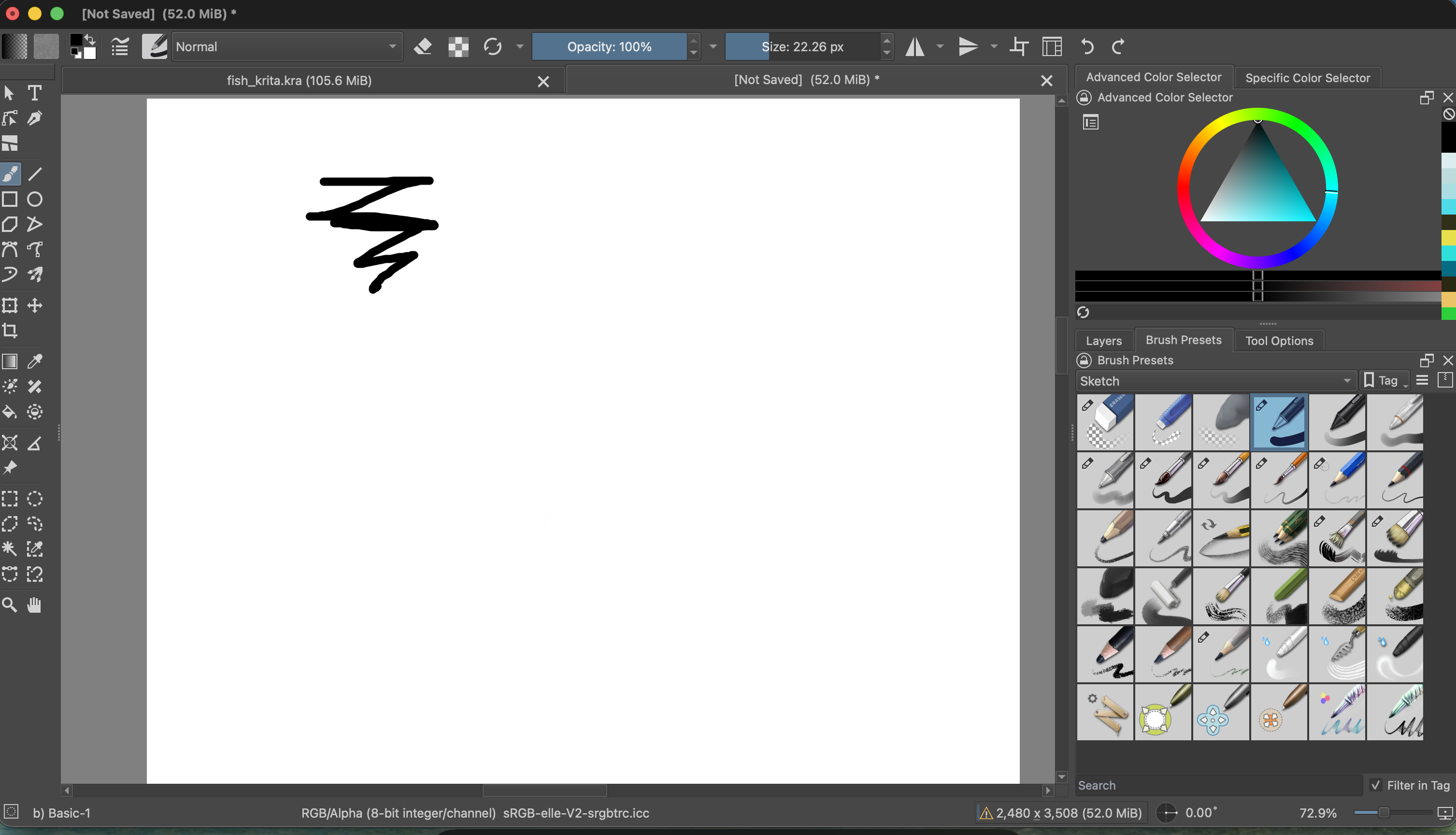
If pressure is not working
- Every stroke has the same width: select a preset with pressure support and check that Size and its Pressure sensor are enabled.
- Nothing changes when you press harder: confirm the tablet is connected and its driver is working; mouse and trackpad input has no pressure value.
- The brush looks faint: check both Opacity and Flow in the toolbar and brush settings.
- You changed a preset by accident: reopen the original preset or save your adjusted version under a new name.