One tool, three useful changes
What does Transform do?
The Transform Tool changes the current selection or the active layer. Drag inside the handles to move it, drag a corner handle to resize it, or drag just outside a handle to rotate it. Krita shows a box with handles around the part we’re changing.
Practice on one simple shape
To keep the exercise easy to undo, make a copy of your drawing first or open a new document. Draw a simple shape on its own paint layer. If we want to transform only part of that layer, first select that part with the Freehand Selection Tool.
- Select the part to change. Choose the Freehand Selection Tool and trace around the shape, then close the selection. Make sure the layer containing the shape is selected in the Layers docker.
- Choose Transform. Select the Transform Tool from the toolbox. Krita displays handles around the selection.
- Move it. Drag inside the box to place the selected shape somewhere else on the canvas.
- Resize it. Drag a corner handle. Hold Shift while dragging to keep the shape’s proportions.
- Rotate it. Move the pointer just outside a handle until the rotation cursor appears, then drag gently.
- Apply or cancel. Press Enter to apply the change. Press Esc to cancel the current transform.
Worked example: make a small school of fish
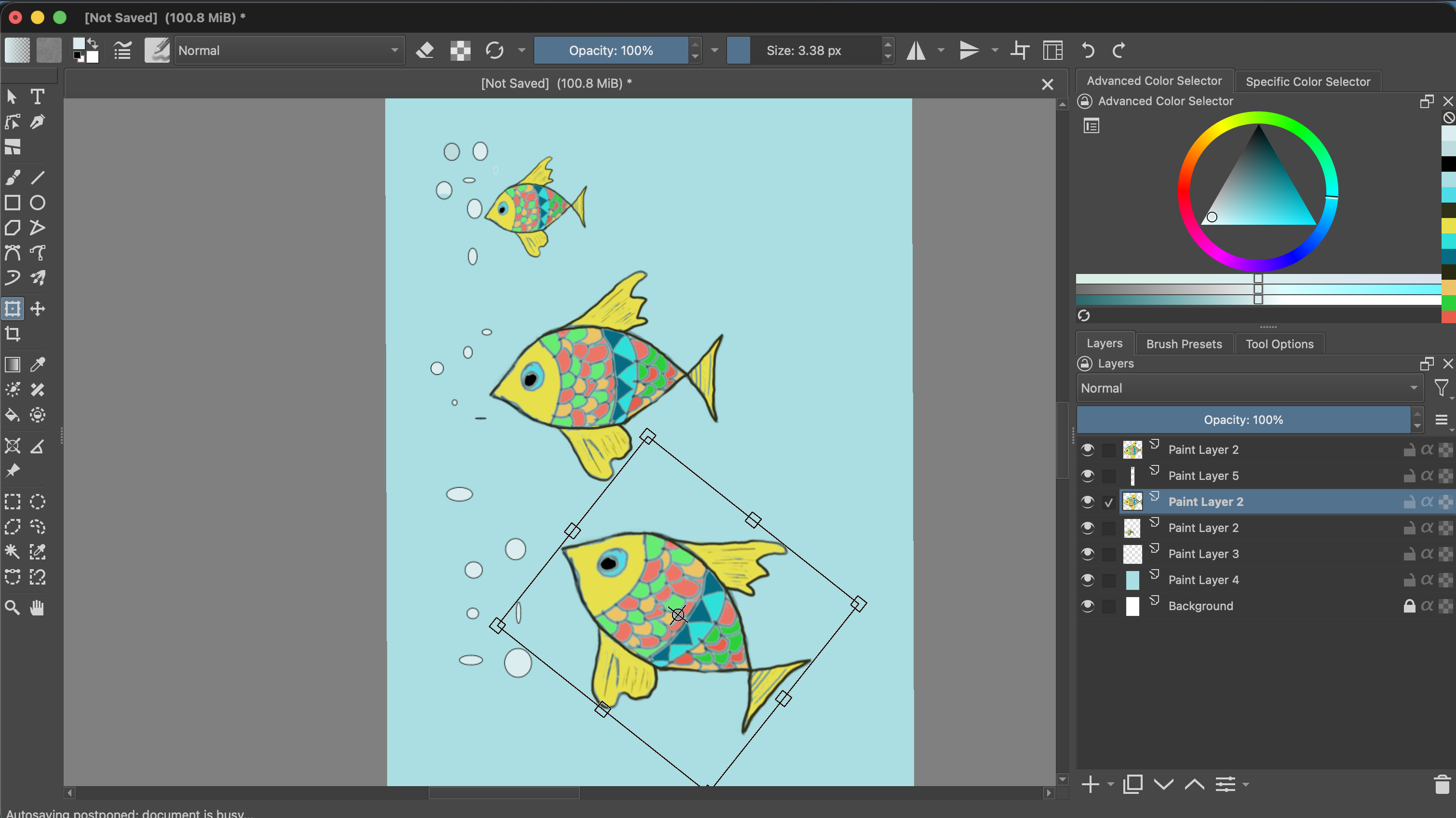
For this exercise, I used a fish drawing instead of a simple circle. I selected the fish, duplicated it, and used the Transform Tool to make copies at different sizes and angles. The screenshots below follow the process.
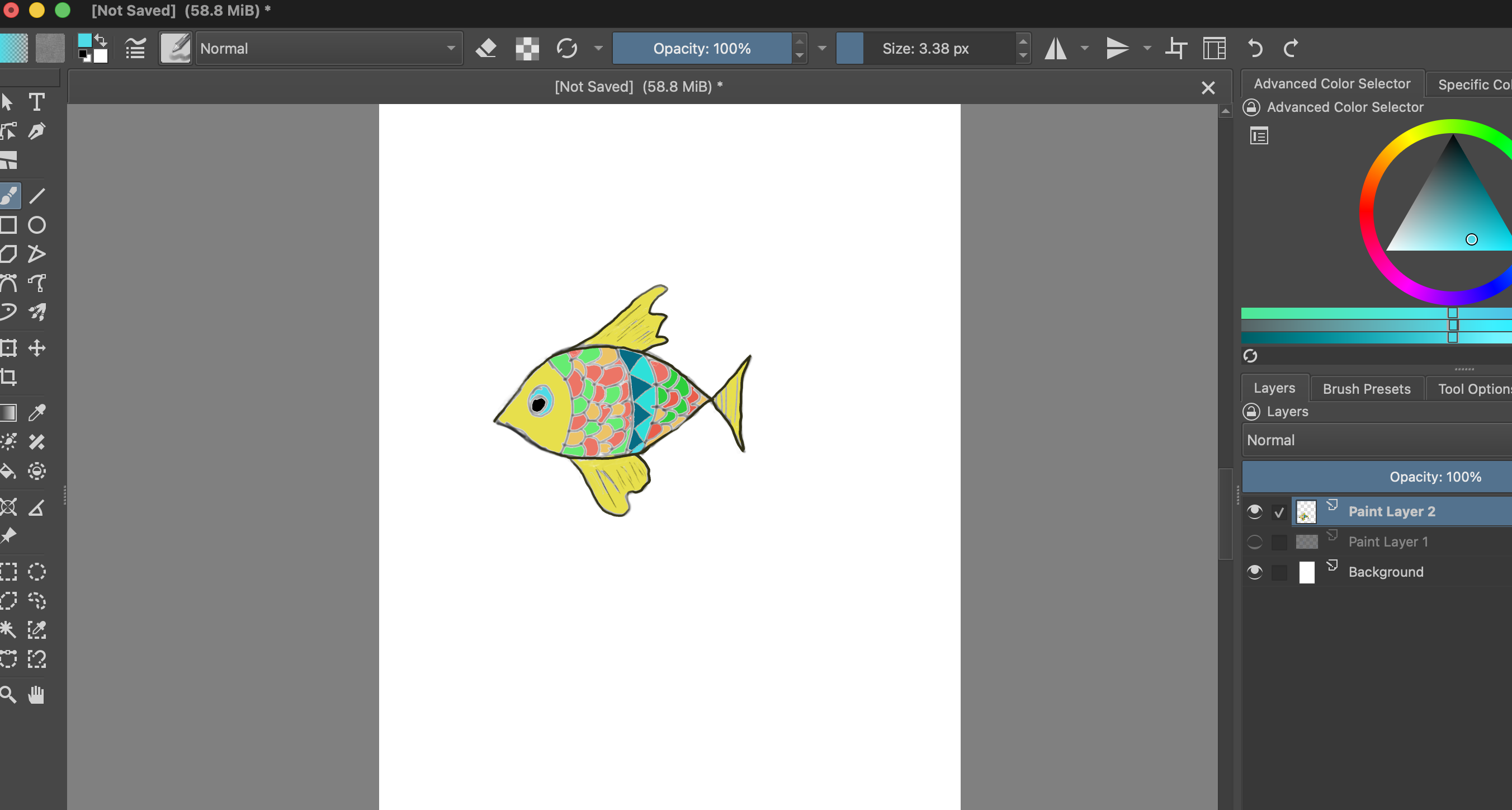
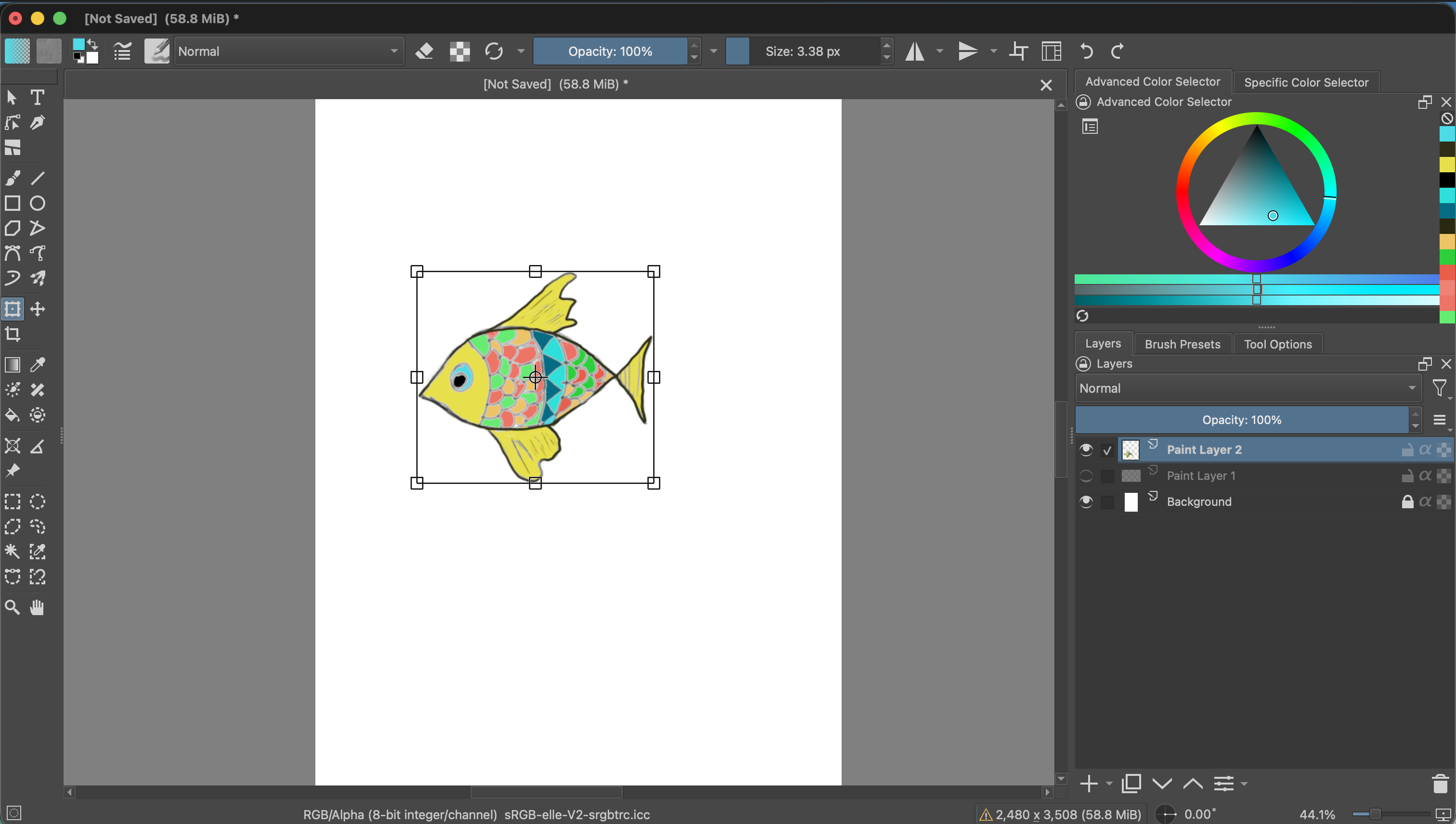
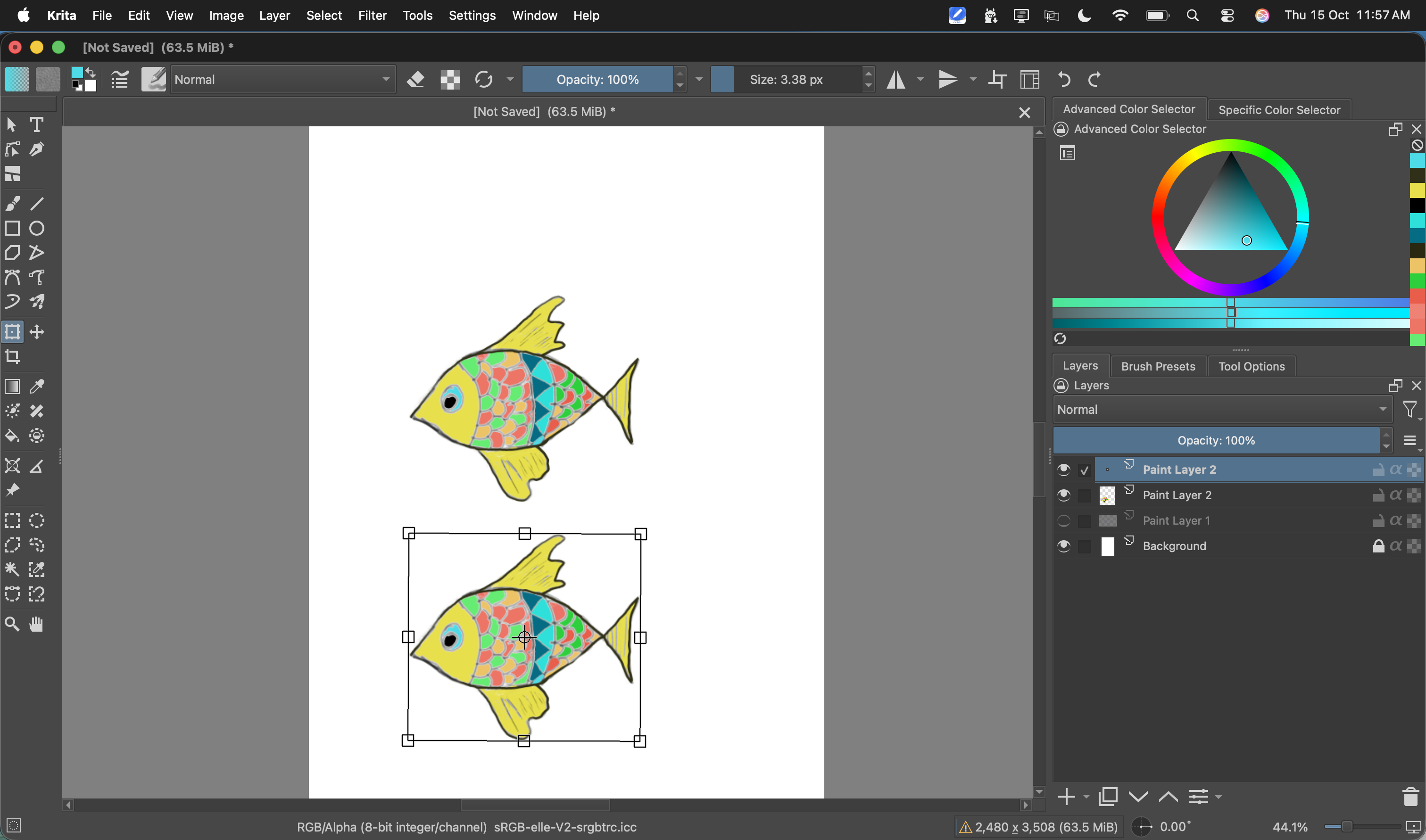
Drag a corner handle inward to make the selected copy smaller. To keep the fish from looking stretched, hold Shift as you drag the corner. If you want a larger copy, drag a corner outward instead.
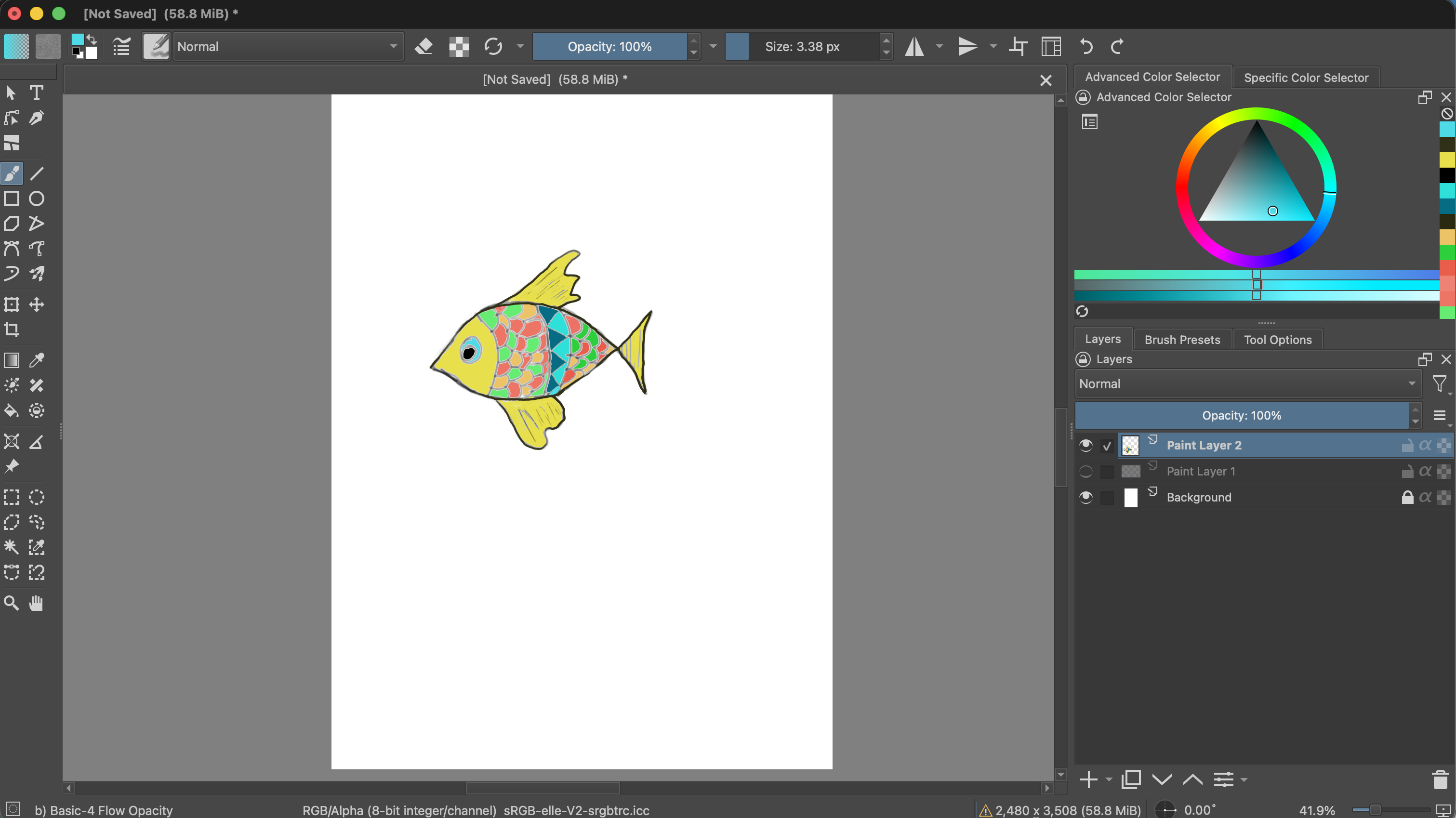
To rotate a copy, move the pointer just outside a corner handle until the rotation cursor appears, then drag. The transform box tilts as you rotate. Press Enter to apply the change; press Esc to cancel the current transform.
Selection or whole layer?
With an active selection, the Transform Tool works on the selected area of the active layer. With no selection, it works on the active layer’s content. Check the selected layer before transforming so we change the part we intend.
In our balloon drawing, the fill and outlines are on different layers. Transforming only the fill layer can move the color away from its outline. For now, practice with a simple shape on one layer; later, we can learn how to transform several layers together.
When something goes wrong
- The wrong part moves: undo, select the correct layer, and check whether a selection is active.
- The shape looks stretched: undo and resize from a corner while holding Shift.
- You want to start over: press Esc before applying the transform.