Your practice drawing
Let’s fill one of these balloons
We drew these three balloon outlines on the same layer, Paint Layer 1. Follow along with this drawing, or make a similar one of your own. First, we’ll fill one balloon directly on that same layer.
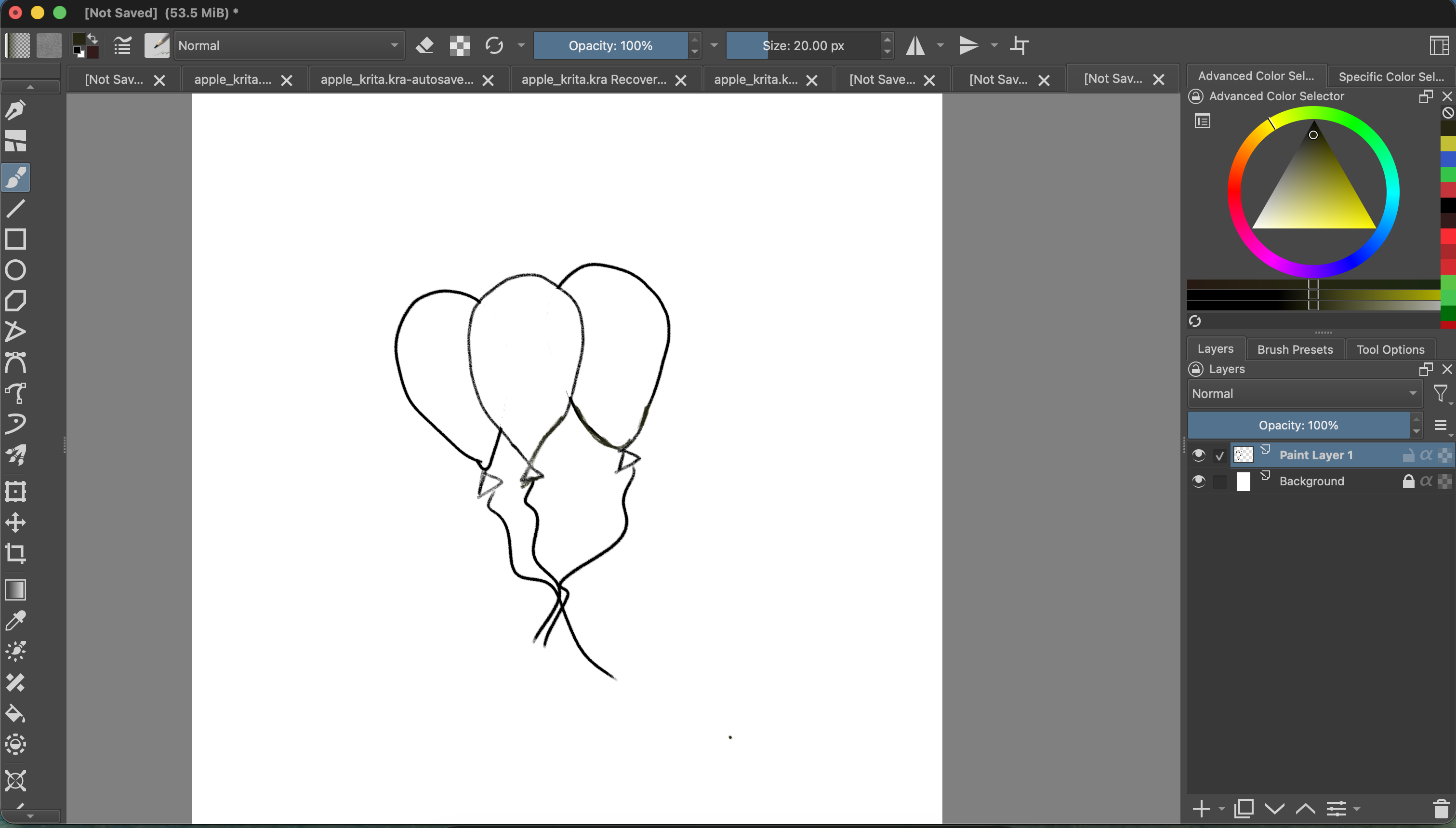
First, fill directly on Paint Layer 1
For this first try, we don’t need a selection or a new layer. Keep Paint Layer 1 selected, choose a foreground color in the Advanced Color Selector, then choose the Fill Tool (the bucket icon) and click inside a closed balloon. Krita fills the connected area inside its outline with the selected color.
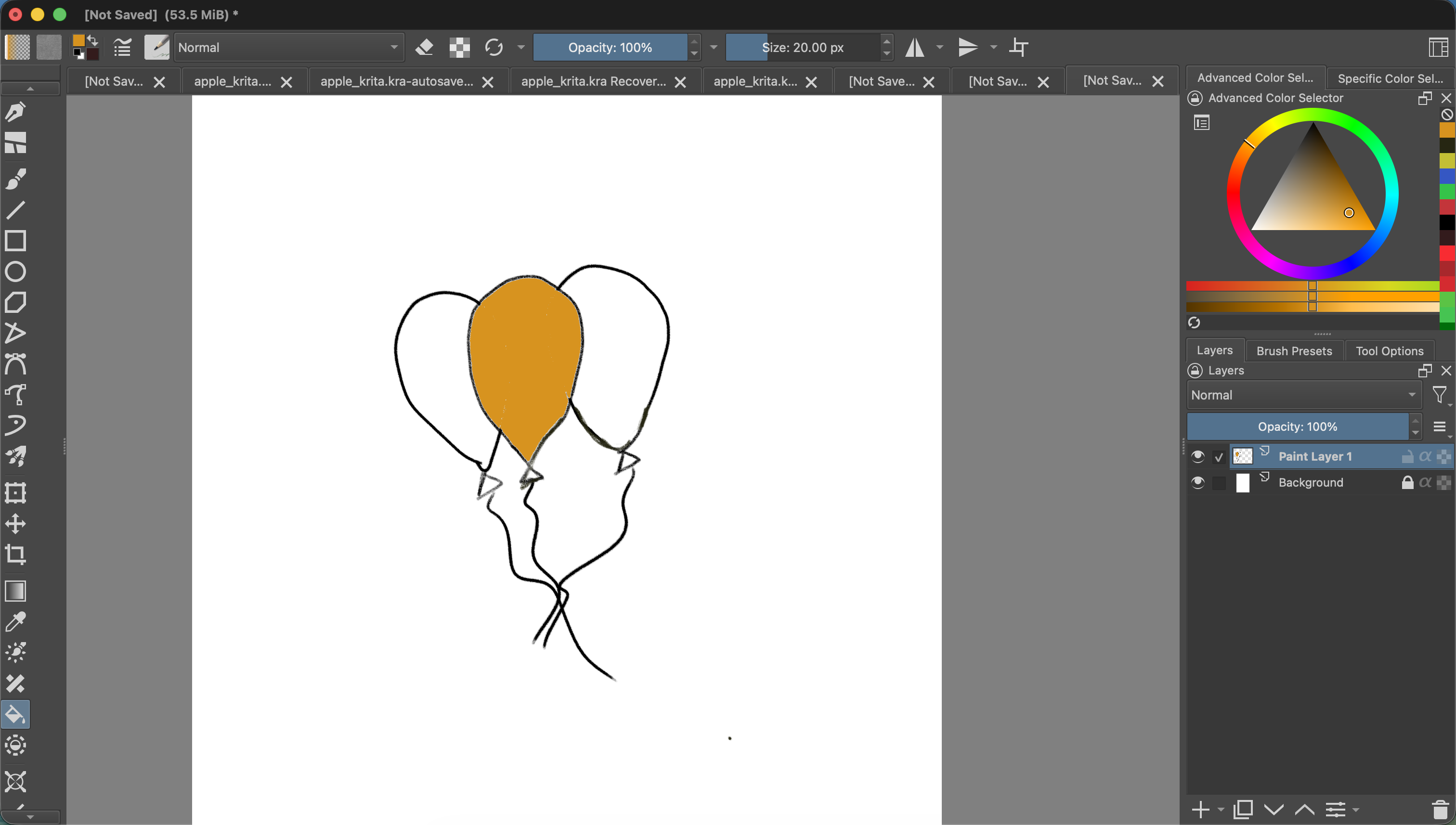
This quick method works well when the outline makes a closed boundary. Because the color and outlines are on the same layer, they are not separate parts you can edit independently.
Fill the other closed spaces
We can repeat the same steps for the two remaining balloons. Choose a new foreground color in the Advanced Color Selector, then click inside a balloon with the Fill Tool. Choose another color and click inside the last balloon. Keep Paint Layer 1 selected: all three fills and outlines are on that same layer, and we still don’t need a selection for these closed shapes.
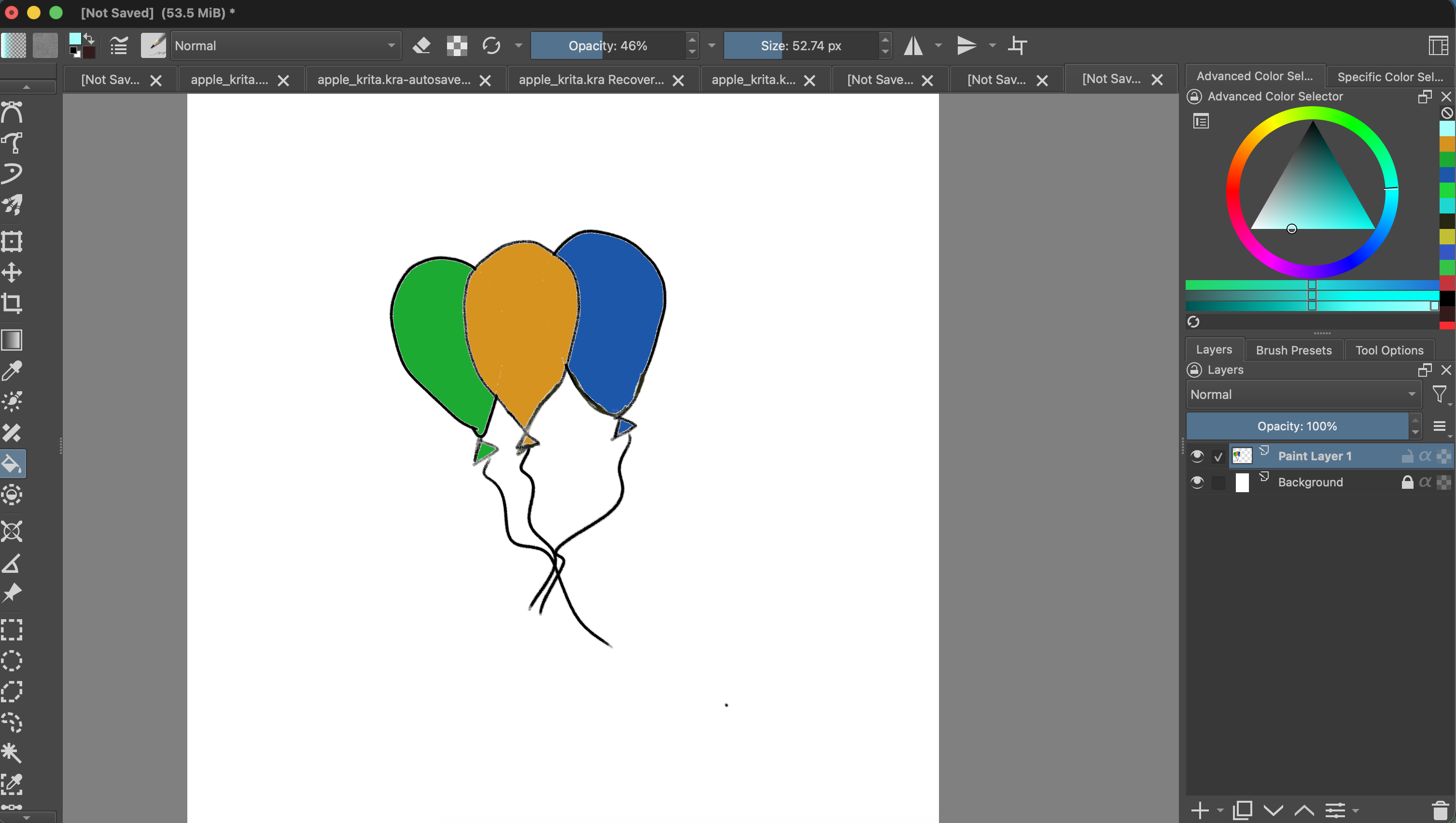
The strings remain uncolored because their outlines are open. The Fill Tool needs a closed boundary to contain each fill.
Next, use a selection for more control
We can try this on one of the two unfilled balloons. A selection limits the fill to the area we choose. For this method, we’ll put the color on its own layer below the outline.
- Add a paint layer for the fill. Click + in the Layers docker and keep the new paint layer selected. Here, the new fill layer is Paint Layer 2; the original balloon outlines remain on Paint Layer 1.
- Select the inside of one unfilled balloon. Choose the Freehand Selection Tool from the toolbox and trace just inside its outline. Close the selection where you started. The moving dashed line shows the selected area.
- Choose a color. Pick a foreground color in the Advanced Color Selector.
- Fill the selected area. Choose the Fill Tool. In Tool Options, set Fill Mode to Current Selection and Fill Source to Foreground Color. Click inside the selection. The fill appears on the selected paint layer, within the selection.
- Deselect when finished. Choose Select → Deselect. The dashed selection border disappears, and you can continue drawing normally.
Keep the fill separate from the outline
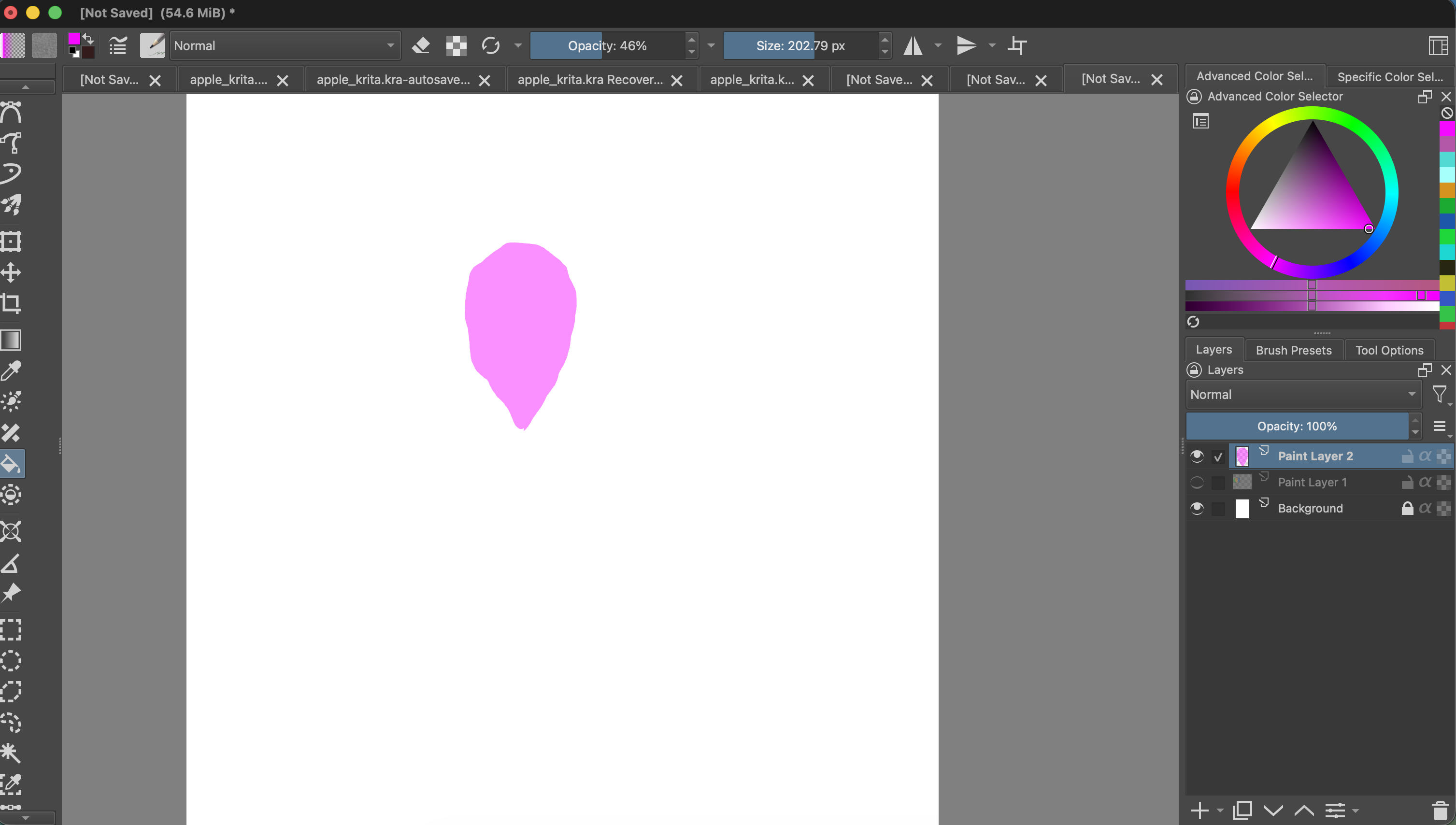
We first created and selected Paint Layer 2. Next, we used the Freehand Selection Tool to select the middle balloon, chose pink, and used the Fill Tool to fill the selected area. The selection is temporary; the pink color is on Paint Layer 2, while the original drawing stays on Paint Layer 1.
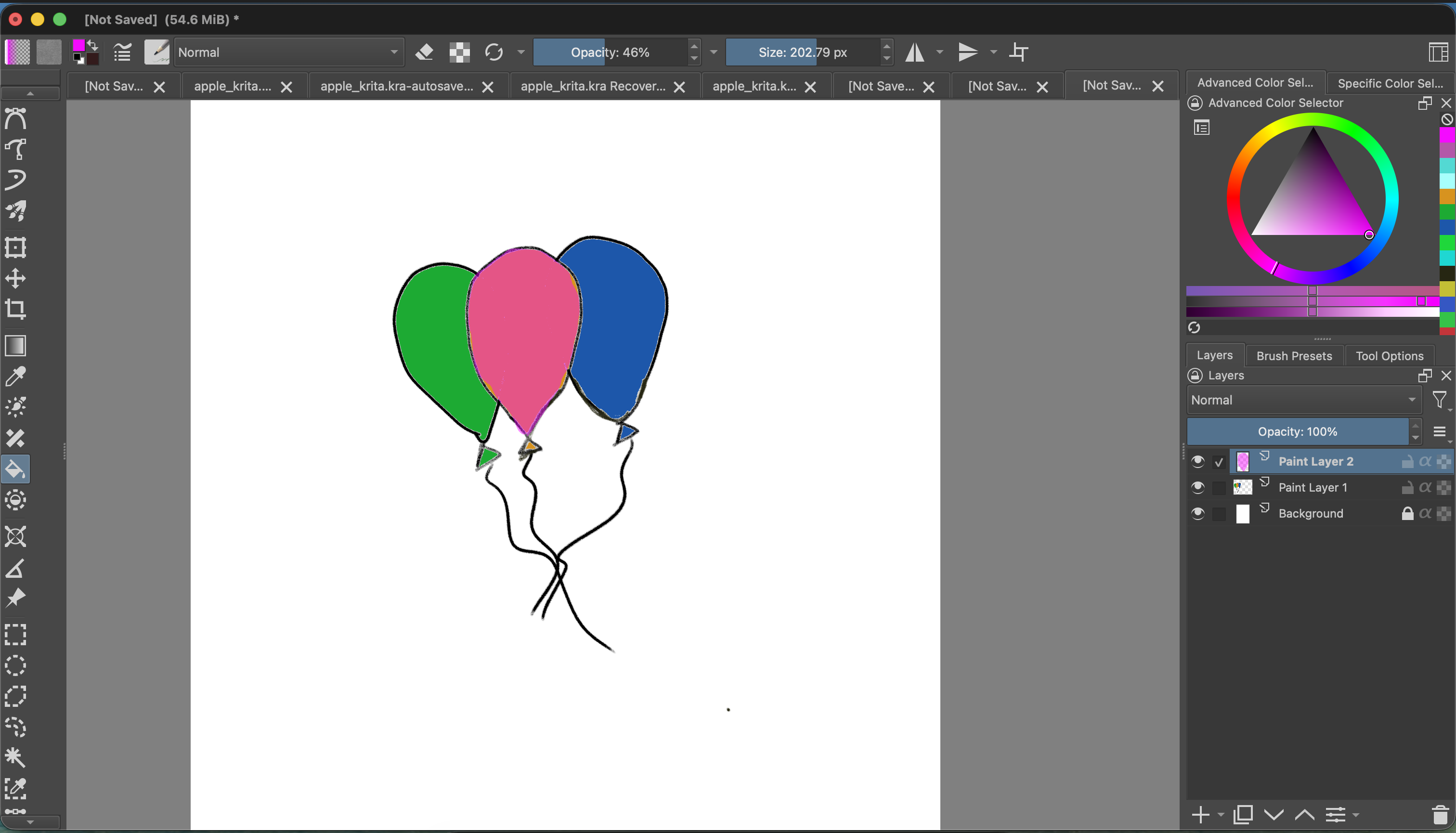
We can click the eye beside Paint Layer 1 to hide the outlines temporarily. The next image shows the pink fill by itself on Paint Layer 2. Turn the eye back on to restore the full drawing.
Practice file
Download our balloon drawing
Open the Krita project to inspect the balloon drawing and its layers, then try the selection and fill steps yourself.
Download ballon_krita.kraIf the fill does not look right
- For a direct fill, check that the outline around the area is closed and that Paint Layer 1 is selected.
- For a selection fill, make sure the selection is still active and surrounds the area you want to fill.
- Confirm that Fill Mode is Current Selection and Fill Source is Foreground Color.
- If color crosses an outline, undo and redraw the selection a little farther inside that balloon’s edge.